0:00
Welcome, Anton is a Crosscall Action X3 and today I will show you how to transfer photos
0:12
and videos from let's say the phone to internal storage or vice versa
0:18
So to get started you want to open up the files app
0:22
For me it's right here, the folder icon. And from here you have the option to navigate either to SD card or your phone
0:29
That is mostly dependent where your file that you want to transfer is located to
0:33
I believe my photo is on the phone but I'll check. Let's see, it's under the camera
0:43
So it looks like it's on the SD card. So right here
0:49
And mind you that if you're trying to move videos or photos, they will be almost always
0:55
located in the DCIM folder. Somewhere right here. Camera would be the photos
1:03
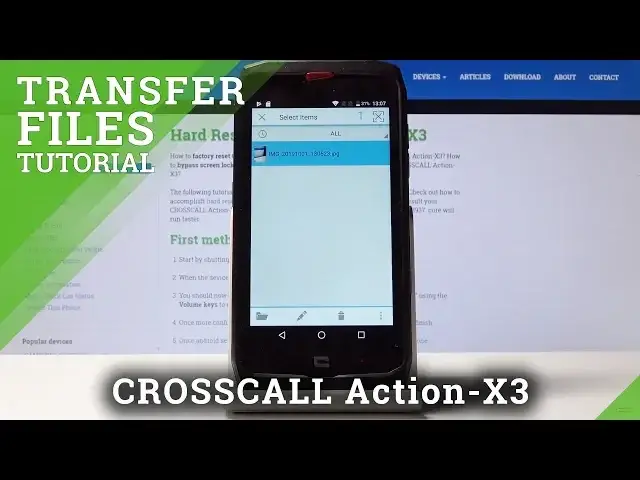
So as you can see my photo is right here. And I'll copy this one. So you can hold the image or video or basically any kind of file that you want to move
1:11
So it basically selects like this. And from here you can either copy it or just cut it
1:18
So I can actually find where that option is. So... Um... Okay, so there it is
1:29
So you have copy, cut, share, properties. We're basically interested in only the two first options
1:36
And as an example I'm just going to copy this so it will make an additional example of this photo
1:42
So one will stay where it is and the other one will be in the location that we're going
1:46
to move it to. So let's tap on copy. And then you want to navigate basically to the folder that you want to move it to
1:54
So like for instance the phone and DCIM. And let's put it right here
2:01
And then tap right here on the dots and tap on paste. We'll get a progress and then you can see that there is the one photo right here
2:10
And this is located on the phone. And then there is another one on the SD card
2:15
So that is how you would copy the photos. And if you found this video helpful don't forget to hit like, subscribe and thanks for watching