Up next in 10


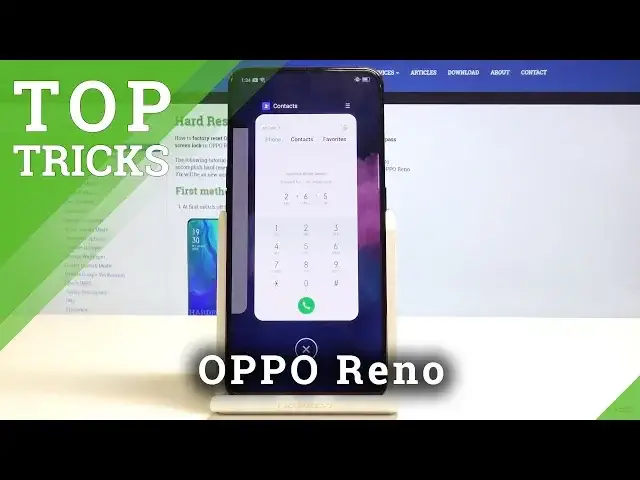
The list of top tricks for OPPO Reno. Let's find out the most important settings and useful options for OPPO Reno. The easy way to know your OPPO Reno better. Check out the mest tips for OPPO Reno.
More Info about OPPO Reno:
https://www.hardreset.info/devices/oppo/oppo-reno/hardreset/first-method/
Follow us on Instagram ► https://www.instagram.com/hardreset.info
Like us on Facebook ► https://www.facebook.com/hardresetinfo/
Tweet us on Twitter ► https://twitter.com/HardResetI
Show More Show Less View Video Transcript
0:00
In front of me is an Apple Reno and I'll show you a couple tweaks and tricks that you can
0:11
do on your device. So starting off I'll show you the App Lock, which when you have a bunch of apps open
0:19
for instance like music or whatever, so let's actually find Play Music, and I'm gonna open
0:26
a couple other things just to keep it so the background is actually filled with stuff
0:33
And now when you go into Recent Apps, you will have these open and for instance you
0:39
want to keep the music open so it still plays, and what you do is basically tap on the three
0:44
little bars and you can have Lock or Unlock. When it's locked, now when you do a Clear of all these apps, with the Bulk Clear, like
0:54
so, Music Player will always stay open no matter what you do
0:59
So you can always do that for other apps, so I can do it for Settings if I wanted to
1:05
although it might not make much sense, but you can always lock it
1:10
If you want to unlock something, you just tap on the three little bars and tap on Unlock
1:16
and now the app will disappear. So that is one thing. Now moving on, we're gonna go into Gesture Navigations, which already are in Settings
1:26
so from here scroll down till you see Convenience Aid right here, and from here you will see
1:34
Navigation Keys, so I can go here, and by default you have also options for the navigation
1:41
keys that are already here, you can use the Google ones with options to switch where the
1:46
bug button is on the word side, and also when you have the recent app button you can
1:53
also switch the position of it too. But you also have Swipe Up gestures right here, and from here you also have three different
2:01
options, and you can have the Gesture Navigations for, basically if you would have the buttons
2:11
but they're Swipe Up, they're not showing up anymore, and you have two options for this
2:17
so bug button is on the right or left, depending on how you like it, or you can go with this
2:22
one, which bug button is on both sides, and recent apps is basically a hold up instead
2:28
of just swiping, so as an example now that it's enabled I can just swipe up and hold
2:33
my finger there, and it will take me to the recent apps, while sliding from any of the
2:39
sides will take me back. So that's a fairly nice thing, but I'm actually gonna go back to the physical buttons because
2:48
it's easier for me to tap than press or slide when it's on the little stand
2:54
So moving on, we're gonna go into Smart Sidebar, which is barely visible right here, you can
3:01
like, kinda, as you can see, that's what I'm talking about, and you have settings for it
3:07
and you go one back to Convenience Aid and Settings, you have Smart Sidebar, and from
3:12
here you can just change a tiny bit of enabling it or disabling it, and then also how it
3:20
if it works in landscape mode or not, and if you want to add something you can just
3:27
pull it up and you have the little add button which you can add apps to it, and you have
3:31
a couple other like shortcuts for instance, like shortcut or notifications, so it's a
3:36
fairly nice thing, it's similar to how Samsung has it, but still a nice touch
3:44
Then moving on, we're gonna go on to Screen Off Gestures, which again, it's in Settings
3:51
and I think it also is under Convenience, Gestures and Motions, and yep, there it is
4:01
so Gestures and Motions and then Screen Off Gestures. And as you can see there is, I mean it's already enabled, but you have other things that are
4:09
already, I mean, at the moment disabled. You have the double tap to turn screen on, which would enable, you have Draw and Alt
4:18
to enable camera or V to enable flashlight, music controls which you can draw, like a
4:25
arrow, skip or go back to a previous song, which I'm gonna disable, I only have a way
4:32
to showcase it, but for instance flash and other things I can, so if you lock the screen
4:41
double tap to wake, self-explanatory, now wakes up, the V for flash, draw a V, turns
4:49
on flash as you can probably see right now, and place it correctly again, for some reason
5:06
it doesn't wanna hide unless you unlock the device as you've just seen, so it's marking
5:12
actually, so when you draw a V it opens, when you actually unlock the device it hides
5:21
if you draw a V once more it stays there or tries to reopen the app that is already open
5:28
So moving on, we're gonna go into three finger swipe multitasking, which basically you have
5:37
a, let's open up for instance YouTube, probably the best showcase app, considering it doesn't
5:42
work in the background, you can swipe three fingers up and then you can choose another
5:48
app like for instance Chrome, and you can keep on listening to YouTube for instance
5:52
and do whatever you want in it, watch some videos while you browse the web, so consider
6:01
that to be very handy and it's really quick access considering you can just swipe three
6:04
fingers up and also three fingers up will turn the multitasking windows off and keep
6:11
the previous first app on. So it was fairly easy and you can also enable it by how it's normally enabled which is like
6:21
when you go into recent apps as I just did and tap on the three little bars you have
6:25
split screen, basically works the same way as the three finger swipe
6:31
So that would be all for now and if you found this video helpful don't forget to hit like
6:36
subscribe and thanks for watching. I'm JamesBl0nde… see ya out there gamers
Audio Equipment
Crafts
Science
Home Automation
Virtual Reality Devices