0:00
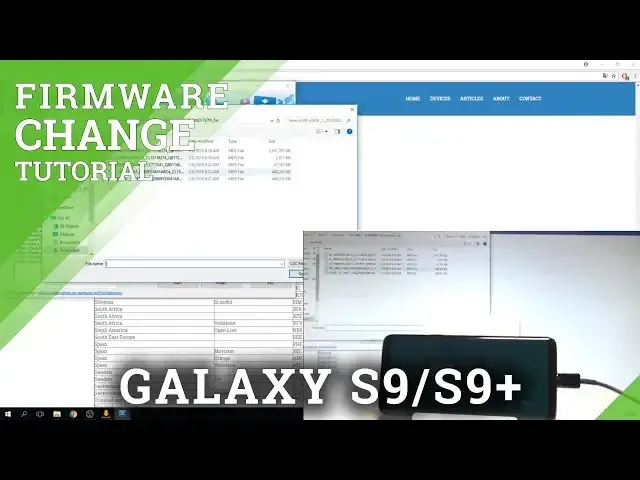
Here I have Samsung Galaxy S9
0:07
Let me show you how to change update firmware on the following device
0:10
So at the very beginning I recommend you to use the following tutorial from hardware.info
0:15
Here you need to download and unpack the same firmware. Let's also download and unpack the Odin application
0:23
Sometimes you need to also install the following components on your PC, on your Windows
0:29
And afterwards when you have everything unpacked and downloaded, you have to open the same firmware
0:36
So as you can see here I have got my Odin unpacked and same firmware. Let's open the same firmware right here
0:43
And here you need to enter your exact model. So you can check out your model right here by using the email.info
0:49
Let's just check out your email number right here. Let's enter this email into this empty bracket
0:58
Let me go for the Captcha protection. Tap next. Tap check and here you've got your exact model so you can copy that model right here
1:14
And you can paste it here. You need to also choose your region
1:18
So in my case my region is from here. Let's use the country carrier Samsung
1:26
So let's just find your country. In my case it's Poland for example
1:31
And let's choose your carrier. So I would like to use without the carrier so the open carrier
1:36
So let's use XEO code. So you can just choose your desired code
1:41
Let's choose just your country and your carrier. Alright so here I have my region
1:50
And then let's just choose the auto. Binary nature, seek, check CRC32 and decrypt automatically
1:56
These four options. Let's just check update the device looking for the newest firmware possible and now you
2:03
can just tap download. So let's just tap download and wait until the download will be completed and until your
2:09
device will decrypt automatically your firmware. Afterwards you need to open the Odin application
2:19
So let me do it. Here I have my Odin. Let's open Odin
2:29
Alright and before I do something I need to also unpack of course my firmware
2:34
As you can see this is my unpacked firmware right here. Alright and now when I have my Odin I need to enter the download mode
2:44
So let me do it. Let's just press power key on my device
2:48
Choose power off and tap power off again. Wait until your device will be completely switched off and afterwards let's use power
2:54
key, mixby key and volume down. So let's hold on together these three keys
3:01
Release them as soon as warning pops up. Let's press volume up to continue
3:05
And this is the download mode. Now let's use the USB C cable to connect my device
3:10
Let me do it. Excellent. Sorry. Let me just use the USB cable
3:17
As you can see on my Odin the device is added. So now let's go to options, choose auto reboot and factor reset time
3:25
And now let's load the files. So let's use the BL file at first
3:33
Now let's use the AP file. AP file is the largest one so you have to wait
4:06
Alright, the AP file is ready
4:15
Now let's choose the CP right here. And the CSC file. So here you have to decide
4:22
Either you would like to fully flash your device and accomplish the hard reset operation
4:26
so you will lose all your data if you choose CSC or you can choose home CSC and you can
4:32
just flash your device and you can keep your personal data. So in my case let me choose home CSC
4:53
And now you are ready to choose start. So let me tap start
4:57
The device is flashing itself. Let's wait a couple of seconds, maybe a few minutes until everything will be completed
5:29
Alright, as you can see the flash operation is done
5:56
You can simply disconnect your device from your PC and let's wait until the Samsung Galaxy
6:01
S9 will be ready to use. So let's wait a couple of seconds
6:07
You can quit the outing. It's not necessary right now
6:28
Alright and now if you unlock your screen, you can see that the home screen pops up
6:33
So it means that you just accomplished the flash operation and you will go to your home
6:38
screen without the welcome panel so it means that you just keep your personal files
6:44
So thank you for watching. Please subscribe our channel and leave thumbs up under the video