0:00
Hi everyone, in front of me I've got Oukitel WP23 and let me share with you
0:05
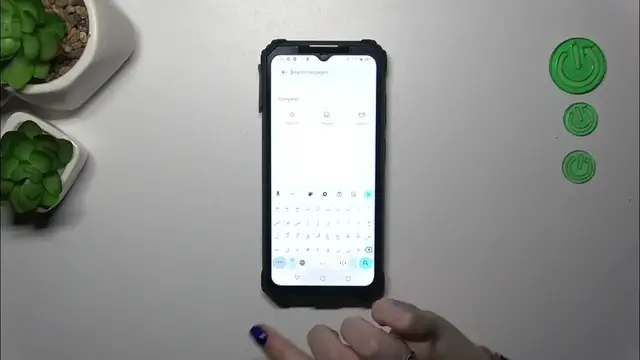
how to change keyboard language on this device. So let's start with opening the keyboard for example in the messages, notes, browser
0:16
whatever, just have the keyboard on the screen and now we have to enter the
0:21
settings which are in this upper panel. So let's tap on it. Then let's tap on the
0:25
languages and tap on add keyboard. And as you can see here we've been transferred
0:30
to the full list of available keyboards from which we can choose. So of course you can scroll, you can tap on the search icon to just enter the name of the
0:38
language you'd like to find and then just scroll and localize the
0:45
language and after that simply tap on it and choose the region if you can
0:50
Right here in this section we can change the keyboard layout or choose
0:55
actually keyboard layout. So it's of course up to you. Simply mark the one
0:59
you'd like to use and untick this one which you don't want to apply. Then let's
1:04
tap on done and as you can see in my case the Urdu language has been immediately applied to this list. Of course if you want to you can right now
1:11
remove the previous language, just tap on this edit icon, mark the language and tap
1:16
on the trash bin icon. However let me wait with this operation because I'd
1:20
like to show you how to use the keyboard with two or more languages added. So here
1:26
after getting back to the keyboard you can see that we've got right now at
1:31
least one difference of the language key which will allow us to actually
1:35
change the keyboard layout. So after tapping on it we can switch through the
1:39
English in my case and the Urdu one. What is more the spacebar it is not empty
1:44
anymore. Right now we've got the name of the language we are currently using so
1:48
you can always check which layout you've got visible. So as I said we can
1:53
remove the languages. So let's enter the settings and tap on the languages again
1:58
Here we have to tap on this edit icon and it's up to you which language
2:04
you'd like to remove. However I will remove Urdu and leave English and then
2:09
tap on this trash bin icon. As you can see we've got only English left and
2:13
after going back you can see that we do not have the globe icon and the spacebar
2:17
is empty which simply means that we just successfully removed the previous
2:21
language. Alright so that would be all. Thank you so much for watching. I hope
2:26
that this video was helpful and if it was please hit the subscribe button and