0:00
Hi everyone! In front of me I've got Samsung Galaxy S24 Ultra and let me
0:04
share with you how to change this navigation type with the buttons to the
0:08
gestures. So let's start with opening the settings and right here in this general
0:18
list of course we have to find the display. Let's tap on it. Then let's
0:23
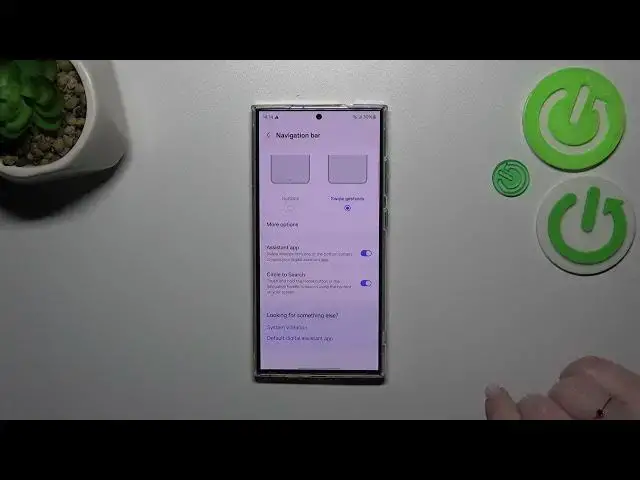
scroll down until we will find the navigation bar. So let's tap and as you
0:29
can see right now we've got the buttons. To set the gestures we have to simply
0:32
tap on this option but before we'll do that a quick disclaimer about the buttons. If you'll decide that you want to stick to this option because this
0:39
option is for example the most comfortable for you, you can customize it
0:43
here so you can tap on more options and you can customize it just by for example
0:47
reordering the buttons, the back button and the recents. You can also manage the
0:52
assistant app and circle to search everything up to you. So let's start with
0:56
the gestures. Let's tap on this option and as you can see instead of the three
1:00
buttons we immediately will have this line which is responsible for some
1:04
gestures which I'll show you later on. Here you've got the animation but no
1:08
worries I'll explain everything. We can of course tap on this more options and
1:13
here we can either block gestures with the S Pen. It's up to you whether you
1:18
want to use it or not and we've got the gesture sensitivity and to be honest I
1:22
highly recommend to get back to this option after a while of using the
1:25
gestures because then you will be able to decide whether you really need to
1:31
change the sensitivity to the lower or higher level. So we'll see. All right I
1:37
forgot to... let's get it back. Of course here we've got also this assistant app
1:43
and circle to search option for some reason. All right so all we have to do in
1:50
order to get back to the previous page just like by using the back button we have to swipe your finger from the side to the center of the device until you'll
1:58
see this arrow. After that you can release the finger and you will go back
2:02
The same situation from the right side. If you want to get back directly to the
2:07
home page just swipe your finger from the bottom to the center of your device. It should be a short and quick motion and if you want to open the recents just
2:15
repeat the gesture but this time hold your finger somewhere here like that. So
2:20
elongate the gesture and as you can see here we've got the recents. All right so
2:26
that'll be all. Thank you so much for watching. I hope that this video was helpful and if it was please hit the subscribe button and leave the thumbs up