Up next in 10


We invite you to visit our website and learn more about GOOGLE Pixel Tablet: https://www.hardreset.info/devices/google/google-pixel-tablet/tutorials/
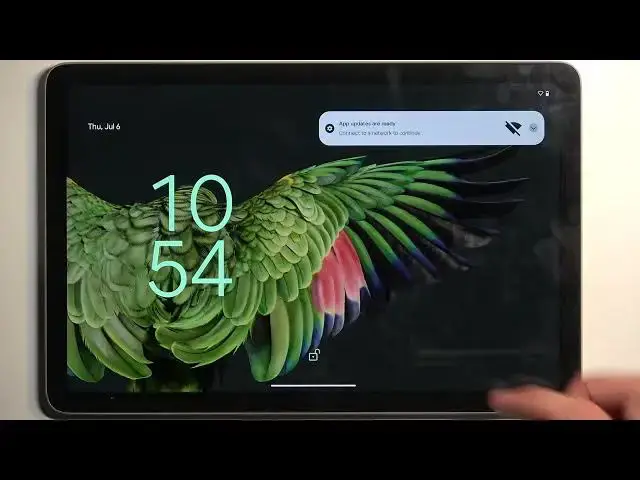
Welcome to our YouTube channel dedicated to the Google Pixel Tablet! In this video, we'll share some of the best tips, tricks, and tweaks to help you maximize your productivity and enhance your overall experience with your Google Pixel Tablet. From hidden features to time-saving shortcuts, we'll cover a range of topics including customization options, app recommendations, multi-tasking techniques, stylus tips, and more. Whether you're a beginner or an advanced user, there's something for everyone in this video. Join us as we explore the powerful capabilities of the Google Pixel Tablet and unlock its full potential. Be sure to like, subscribe, and share this video with other Google Pixel Tablet enthusiasts. Get ready to take your tablet experience to the next level with these amazing tips, tricks, and tweaks. Let's dive in!
How to set up the app dock on GOOGLE Pixel Tablet? How to change the color scheme on GOOGLE Pixel Tablet? How to customize the home screen on GOOGLE Pixel Tablet?
#GOOGLEPixelTablet #TipsAndTricks #GOOGLETips
Follow us on Instagram ► https://www.instagram.com/hardreset.info
Like us on Facebook ►
https://www.facebook.com/hardresetinfo/
Tweet us on Twitter ► https://twitter.com/HardResetI
Support us on TikTok ► https://www.tiktok.com/@hardreset.info
Use Reset Guides for many popular Apps ► https://www.hardreset.info/apps/apps/
Show More Show Less View Video Transcript
0:00
Welcome, in front of me is a Google Pixel tab and today I'll show you a couple tweaks
0:04
and tricks you can do on this device. So let's start off with the home screen, which has a couple of features
0:16
that you don't actually get to see right off the bat. Now one thing that Google has introduced, I think like a couple of versions ago, was this
0:23
And we think that we can see these two apps right here. So these are not actually apps that are added right here
0:29
They simply keep switching for the newest app that you have opened
0:33
as long as I think it's not in the taskbar. So as an example, if I open up settings, as you can see, it's changed to settings
0:41
Now if I open up something else like Play Store, settings will move over here and Play Store should be right over here
0:49
Nope, I guess it kept the messages and it removed settings. But in any case, you can see that it basically substitutes apps with
0:59
I guess, the most recent ones used. And if you remove more apps from here, then more apps will become like this
1:05
as you can see right now. So it's basically an empty space right here
1:09
And as long as the space is empty, it just fits it with most recently used applications
1:16
The more you remove, obviously, the more recent applications you can see. Now moving on, we also have the home screen wallpaper
1:25
or wallpaper in style, as it's called. So in here, you can customize the look and feel of your device
1:30
Now we have the typical changing wallpaper, whatever. But below that, we have wallpaper color
1:36
So this allows you to pick a color scheme for, as you can see right here
1:41
this kind of lime, almost like color, greenish or teal, I think it is, whatever
1:47
Anyway, it basically picks it from the wallpaper that is set right now
1:51
And you have a couple of different ones that it creates based on the wallpaper. So you can cycle through them
1:55
and it will automatically change the color scheme of your entire device
1:59
which is a pretty nice thing, especially if you have some kind of colorful wallpaper
2:03
You can tailor the rest of the color scheme to that wallpaper, which is obviously nice
2:11
And below that, we also have the themed icons. So this basically changes the icon look to, well, fit with the color aesthetics
2:18
Now this is okay. Personally, not the biggest fan of it. It just makes them look all bland
2:26
But like I said, it's personal opinion. And also, it might look better with different wallpaper
2:33
Now moving on to the next option, it's going to be the hub mode
2:38
Though I don't have a hub, so I'm just going to explain it
2:42
But here we have a couple of different things that it can do with the device when it is in hub mode, which is basically attached to the speaker
2:48
And we have a screensaver, whatever, it's a screensaver. At a glance, remind alerts and more from assistant
2:55
So that's pretty nice. Now, obviously, I think everything here will be enabled
2:59
So if you don't like something that happens, which device when it's in the hub mode
3:02
you might want to just turn it off from here. So we have dock settings right here
3:11
We also had at a glance. So just go around here, find what interests you and customize it
3:20
Now, anyway, let's move over to something more interesting. So we're going to move over to something that is specifically from Google
3:31
and only on Pixel devices, as far as I know. So that will be the now playing option that is located under sound right over here
3:41
Sound right over here, you can scroll down and you have the now playing
3:47
And as you can see, when enabled, it will identify songs on your home screen
3:51
though this, I would argue, works better on phones rather than a tablet
3:57
because phones, you walk with them to stores and other places. And what it does, once you actually connect to Wi-Fi
4:04
it will download the list of songs that it that we will then use to identify what's playing
4:11
So you do need to connect to network. This doesn't take much space on your device
4:15
And it's downloaded once, I guess, updated probably every so often to keep track of the newest songs, obviously
4:23
Now, once that's done, when your device is on a lock screen, it will display the name of the song somewhere at the bottom
4:31
Whenever any kind of song is playing, it also keeps track of the songs that it identifies
4:37
So you can see it right here, now playing history. So later on, once you check out your phone, you hear a song in a store if you're using a phone
4:46
And if you like it, you kind of forget about it. You see the song name, whatever, right
4:51
Then you can navigate in here, check it out. It will have the names of the songs that were playing
4:57
whenever it actually identified something. Like I mentioned, though, this option is very nice if you tend to, I don't know
5:04
maybe listen to radio in your house or something like that, because obviously you won't be walking with this in your pocket
5:10
throughout like shopping malls and stuff. So this option is a little bit less useful on a tablet
5:18
but it's still a very nice one considering it works in the background
5:22
and you don't need to do anything extra, unlike Shazam, which will require you to open it up and then start scanning for music
5:30
Here, you hear a song, it automatically, if you want to know
5:33
you take out your phone and it already tells you what the song is, which is really nice
5:38
Now, anyway, let's move over to the display section right over here
5:43
where we'll have a couple of things. So we have the dark mode right here
5:48
If you want to enable just the dark theme, you can switch it on. You also have the option to enable it by tapping on a text on a schedule
5:57
either from sunset to sunrise or on a custom timer. And going back, another thing we have here will be the colors
6:06
This allows you to change just a saturation of the display. Now, I don't think that me changing it will..
6:17
I guess you can see just a little bit of a difference. If you pay attention to this section right over here
6:22
you can see that it becomes more vibrant, less. So this is just more saturated, while natural is a little bit more toned down
6:31
though the differences here are very subtle. Can you like swipe? There we go
6:40
Anyway, just another example right here. Here, you can see it a little bit more
6:49
So there we go. Now, this is completely preferential. I do myself prefer natural, a little bit more toned down and realistic
6:57
Now, one next thing that I'm going to touch upon, this is this one, the adaptive tone
7:02
So dynamic adapts the display to warmer or cooler tones based on the ambient light
7:09
So I don't think I will be able to show this very accurately. It is enabled by default, but I'm going to turn off one of the lights
7:14
which is a warm light, and we'll see if we can see some kind of shift in the tone
7:26
Let's try to change even further. Nope, I honestly don't see much of a difference here
7:39
It could be that it's doing it gradually, and obviously what this strives to do
7:45
and the reason I'm pointing this out is because to some people it might be a little bit annoying, but what it tries to do is to match the white color of the display to the ambient lighting
7:57
So obviously, as an example, if you're outside during the daytime, then the display will probably be, let's just call it neutral
8:06
But when sunset is coming around, obviously the entire outside starts to get a little bit more
8:14
warmer in color. So you have the sunset, which basically brightens and warms up the entire
8:20
city, for instance, and then the device will see that the tones that it's getting are a little bit
8:28
more to the warm side, orangish and so on, and it will match it on the display
8:33
so it looks like the display is still white compared to the rest of the environment
8:39
Because typically if you have like the sunset going on, and then your display
8:45
just normally, it would look super bluish compared to the environment that you're in
8:51
And obviously vice versa. So if you're in a daytime and you're inside with your warm lights
8:57
and at home, get out, then the display will look super like, warm, almost like a faded paper
9:05
So that's, again, something that you don't want, really. And what this option does is
9:10
just kind of tries to equalize the warmth of the display to the environment
9:17
Now, moving on to the last option that I wanted to show you, it's the notifications
9:22
or notification bubbles, right over here. Now, this is, I believe, enabled by default
9:28
but if it's not, you can toggle it on here. And basically what it allows you to do is have some
9:32
conversations and applications that allow you to talk, like, for instance, Messenger
9:37
appear in a bubble. Now, it is literally ripped from what Facebook did with their Messenger
9:45
but obviously, if it ain't broke, don't fix it. And a lot of the devices implemented that
9:50
nowadays into their system, because it is a pretty nice option to be able to run
9:57
either applications or conversations like this and just have them be movable
10:03
Now, there's one last thing that I didn't mention, and it's the dock that you can access
10:08
on the device. And typically, you have the little bar right here to swipe up to go home
10:15
and hold whatever to get the point. But if you just swipe it a little bit, it brings up your
10:21
dock that is visible right over here, just shrinks it a bit and obviously positions it in the middle
10:26
And this only is accessible to you if you are in an application. So from here, you can
10:34
at the top right over here, and this will show you all the installed applications. And what
10:38
you can actually do is, for instance, grab one, yoink the side, and have a quick split screen
10:43
function. It's basically that easy. Move it outside, bring it back up, see
10:52
We don't actually have any way of having it in popup view. So that's the only thing that it can
10:57
do. But you can also obviously swap between the apps quickly. And because we have the couple
11:04
applications that dynamically show you the most used one, you can just kind of start swapping
11:09
between them without much of a hassle. So there we go. Now, with that being said, hopefully you
11:16
found this video helpful. If you did, don't forget to hit like, subscribe, and thanks for watching
Consumer Electronics
Business & Productivity Software
Skins, Themes & Wallpapers
Science
Other