0:00
Welcome and fun of me today on our 20 and today I will show you how to go to the setup process of the device
0:13
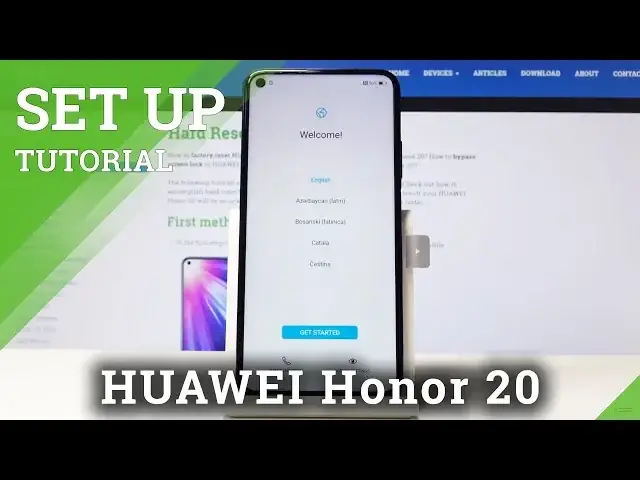
so once you get the device you will be presented with this screen the welcome one and from here get to choose the
0:18
the language that you want so you can just scroll down and find whatever you like
0:23
I'm just going to stick with English as it was on the start and then top on get started
0:29
Then from here select your region. You can choose your region. Also from a list, you scroll down
0:38
Tap on next. Terms of use, tap on checkbox here to agree, and then tap next
0:44
Then you have a screen for a SIM card. You can completely skip this. It doesn't really matter if you put the SIM card right now or later on
0:52
Then you can set up a transfer data, basically. as you can see here choose from where
0:59
Tap on next, I don't have anything to basically transfer so it doesn't really
1:05
concern me. Then connection to network. You can choose your network, I'm just going to top in line here
1:13
Also if you don't want to connect to network where you don't have any in your area you can just tap on skip
1:27
Then you can sign into Google for features like Google backup and stuff like that And also for the Play Store so I just going to put it in here
1:39
And then top on next, you can also skip as you can see right here
1:50
If you don't want to log in, then I'm going to put on my password, so just give me a moment
1:58
and then tap on next and you should see this screen right here
2:07
Terms of use for Google, so tap on I agree. Then you can disable that or enable that backup
2:22
So basically your emails and stuff like that will be back up to Google. so if you're on the same account logged in on a different device you will basically be synced between those
2:32
device you can as I say can disable this location that doesn't really matter you can enable or disable
2:40
it at well and yeah basically you can go to read each one of them and see which you want to enable
2:46
or disable and for the most part all of them can be changed later on anyway
2:55
Step on continue I not planning to use voice assistance or skip and then Huawei ID this will give you access to like themes and stuff like that You can log into it or register as you can see Or you can skip it altogether if you don really care for changing your themes of the device
3:14
and their Huawei's apps. Cloud, also you can enable or disable it
3:21
If you want to store things in the cloud, you can just enable it
3:26
I'm not planning to. So I'm just going to tap on skip. and then you get to choose your fingerprint ID so you can actually also choose face unlock
3:36
we're gonna go with fingerprint for instance here and then as can see it tells you to put a
3:42
pin it's one that you would want to choose as a pin but you can also change the
3:50
unlock methods to a four-digit one instead of that we have right now a custom pin pattern
3:56
or password. I'm just going to choose pattern and then I'm going to draw the pattern that I wish
4:03
Draw it again and then tap on done. And then I get to scan my fingerprint so
4:09
me somehow try to get this. This is the power button on the side as you can see
4:26
Okay as you can see now it added Now you can also rename it so you know which finger it is because you can add more if you like so you can unlock your device with different fingers
4:52
But we're just going to keep on this one and not change anything so top of okay. And then you can also add a face unlock if you like or I can skip it. Fingerprint might be enough
5:04
Enhaned services, just going to tap on no thanks, and later. And then update manually, you can choose update automatically
5:13
then we'll do it automatically. And get popular apps, I'm just going to choose nothing
5:19
Later, there we go. And now we're in the screen. With the device fully set up with fingerprint
5:28
and Google, so you can automatically go into the Play Store Play Store and start downloading apps without actually having to log in
5:36
So if I quit this, now if I like the device, I can press the button to automatically
5:44
unlock it, but for instance if I do it with a different one, it will not unlock
5:50
I just need to put in the pattern. So that is basically how we will go to the setup process of the device
5:56
And if you found this very helpful, don't forget to hit like, subscribe, and thanks for watching