0:00
Here I have Vivo V11, let me show you how to use here the engineer mode on the following device
0:12
So before you enter the engineer mode you need to enable the developer options
0:16
So let's here use settings, then find and select more settings, select about phone and
0:22
here you need to scroll down to find the software version, let's tap a couple of times on software
0:28
version and now you are in a developer mode. So that's it, now you can use the engineer mode
0:34
So let's just open the phone's dialer and let's use this code
0:40
Asterix pound, asterix pound, three six four, six six, three three, pound asterix, pound asterix
0:46
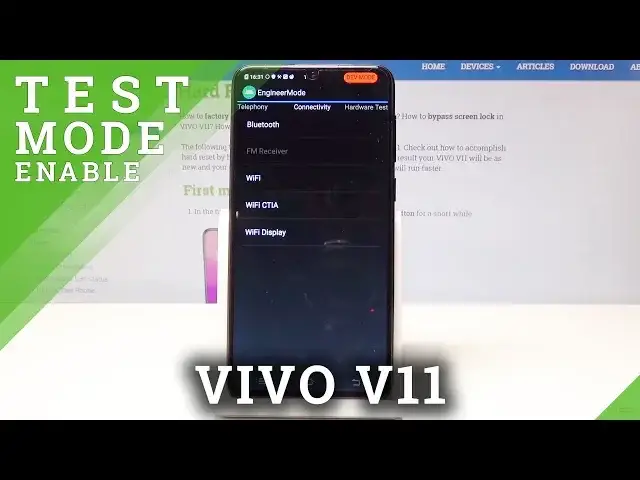
As you can see the engineer mode just pops up, you need to right now enable developer
0:52
options so let's do it, let's choose settings, here let's find and select more settings
0:57
scroll down, here let's tap developer options and let's make them enabled, alright, now
1:03
everything looks just fine. Now you can use the following code one more time, asterix pound, asterix pound, three
1:10
six four, six six, three three, pound asterix, pound asterix and the engineer mode just pops
1:17
up, here you can use the telephony section for example to use the antenna test to see
1:22
how to answer, to change some settings. Here you can also swipe to the left and use connectivity such as bluetooth, wifi, here
1:30
you can also use the hardware testing and test your audio, camera, memory, power
1:36
You can see location settings, lock and debugging and others. So here for example you can use the USB modes
1:44
So that's it, if you would like to quit this mode let's use the back key and now everything
1:49
went well, you can use your device in a normal way. So thank you for watching, please subscribe our channel, leave a thumbs up under the video
1:56
And I'll see you in the next video