0:00
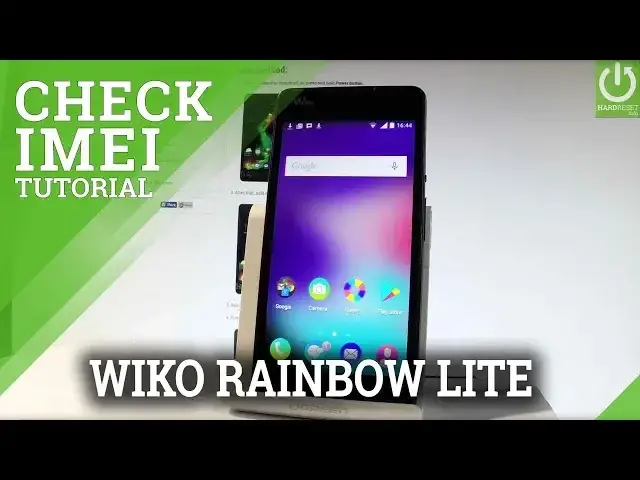
Here I have Wiko Rainbow Lite and let me show you how to check email number on the following device
0:09
So at the very beginning let me start by using a home screen, let me find and select the
0:14
phone icon right here and let's use the following secret code. Star hash, 06 hash and as you can see the email number just pops up
0:25
In order to close this window let's tap OK. Excellent now let me show you how to check email number by using a settings
0:32
So let's find and select the settings icon, let's scroll down to the bottom of the list
0:38
and let me choose about phone, then choose status and select right here the email
0:46
Right here you've got the email info so you can read the email number from the following
0:50
menu as well. Now if you would like to use some other method you can use the manual one so even you can
0:57
check the email without switching on the device. So let me switch off my phone at first and then let's open debug cover protection, let's
1:07
do it by using the cavity at the left down edge of the device right here
1:12
Let me simply use a nail finger to open the whole item, let's do it step by step
1:19
Now you have to remove the battery, let's do it by using the cavity at the down edge
1:23
of the item and here you can read the email number of your device, you may also use a
1:29
barcode to these identifiers. Now let's put back the bug cover protection and the battery and let me switch on my phone
1:39
by holding a power key. So the Wiko rainbow light is turning on, let's wait a couple of seconds
1:55
Excellent, as you can see now you can use your device, the phone is in the normal mode
2:01
So thank you for watching, please subscribe our channel and leave thumbs up under the video