0:00
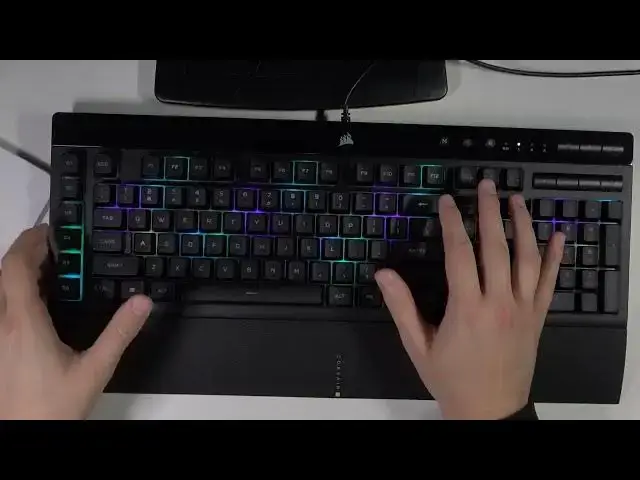
Welcome today I am with Courser K55
0:10
RGB Pro XT keyboard and I will show you what you can find inside it will be quick
0:16
unboxing and a small preview so let me just open the box
0:22
Okay, so as I can see that's all. We can find right here this kind of user manual, so we're going to put a bag, and also this
0:39
palm rest that we can attach to the bottom of our keyboard, so I'm going to open it, and I'll also
0:46
put it to our keyboard. Okay, right now I'm going to remove foil from this keyboard
1:16
Okay, so there's the keyboard and this polar rest we can put right here
1:26
But at the first I will show you how it looks. It's made of the plastic if you wonder
1:34
It looks like we got scratches here but it's a foil. So I'm going to remove this foil because it looks mostly not nice
1:46
Okay right now this part of the keyboard looks definitely better And if you wonder how it looks right here at the bottom
2:01
So there it is, and this side, and you can find the serial number of the product
2:09
This one we can plug right here. It's just kind of the rest for our hands, palm of our hands. hands
2:25
There's nice click and let's turn on our RGB lightning. Okay, that's interesting
2:57
Looks like it's not working. switch the USB port. So just wait a minute. Okay so I am back with this Corser K-55
3:15
RGB Pro XT keyboard and right now I just fix it I just incorrectly plug the keyboard to my
3:22
PC. So to assume we got here the USB 3.0 with this Alcatal Streamdex software integration
3:30
So we got six macro keys that we can set up for our streams to make any action with them
3:37
Of course we got this palm rest right here. It's not the best quality
3:42
Of course you know it like very flexible honestly But you know you are not using your head like that when you play on the keyboard so you probably just put it like that and I just type on it right
3:56
So maybe, I don't know, I have to use this for like a few days or weeks
4:01
and I can tell you what is the quality and the experience of using this polymerrest
4:08
And also we can find here the volume and the media keys button
4:13
Of course in this device we can find the lightning, the RGB lightning as you can see and we can change it like that
4:20
You have to press the function button and click Take look it changed maybe I'm gonna turn off the lights right here, so I will show you better how it looks
4:32
Yeah, right now it looks definitely better So I will show you all modes that you can find here
4:42
This one is literally Cool. There's the wave that comes from the left to the right
4:51
We can also customize this lightning modes. I will show you how
5:00
Okay, this one is activated when we are typing on the keyboard
5:13
And this one is also activate when you type. It's like you know waves
5:20
This one is permanently activate. And you simply change the colors. On the 8 we got lights up
5:31
It looks like another wave. And on the zero we got static colors that we can change
5:39
And also right now I going to turn on the lights a little bit we can change the brightness of these options of this lightning So we have to tap here As you can see it goes a little bit darker
5:53
Maybe I'll also turn off the lights. Right now it's turned off and we can activate back
5:59
So by tapping on this button, you can change the colors of your lightning effects
6:08
And also we can speed up them. So for example I'm going to pick this one
6:14
And to speed up you have to click the function button and it was the plus right. Yeah
6:25
As you can see right now it goes faster and you can make it slower by tapping on the minus
6:34
Right now it goes definitely slower as you can see. You can also rotate this
6:40
modes by pressing the function bottom and this one. So right now it goes to the left side
6:48
Right now it goes from the top to the bottom and right now from the left to right
6:58
So yeah, that's all how it takes a little bit longer than I thought, but I just show you what you can find in the box
7:08
how the keyboard looks. the keyboard looks. I just told you about all options that we can find in this keyboard
7:15
these lightning options. Also we get this macro keys that you can set up with the Al-GATO
7:24
program. That's all. If you find this video helpful, remember to love a like, comment and subscribe