Up next in 10


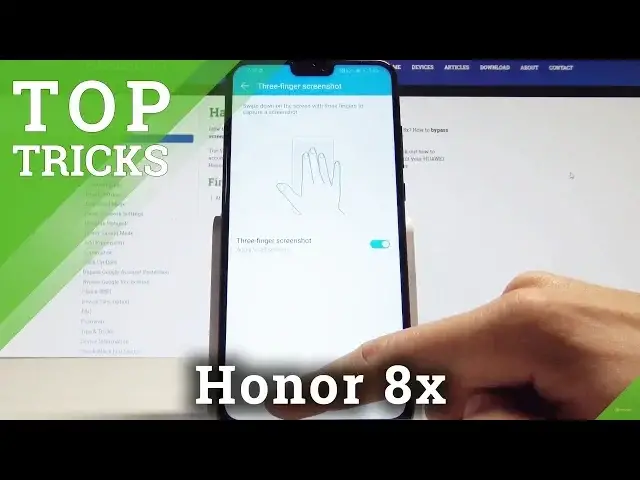
The list of the best tricks for Honor 8x. Use out tips in order to use Honor 8x in the best possible way. Let’s get access to hidden features, secret options and helpful settings.
More Info:
https://www.hardreset.info/devices/huawei/huawei-honor-8x/hardreset/first-method/
Show More Show Less View Video Transcript
0:00
Here I have Honor 8X and let me show you top tricks for the following device
0:12
So at the very beginning let me start with the most powerful tool on this device so the
0:17
phone manager. Let's open this app, phone manager right here and here you can optimize the device just
0:23
by clicking one key, one button. You can also here accomplish other useful operations, for example you can use clean
0:30
up to scan for unused apps and to clean up some storage
0:36
You can also here use the virus scan to perform a quick scan and make sure that your device
0:43
is secure. You can also here enable one of the following power saving modes and you may use other really
0:51
interesting features. So that's it, let's go back. Now let me show you another trick, so let me show you the motion control
0:58
Let's use settings, choose here the smart assistant and choose motion control
1:05
So here you can for example use flip, so you can flip to mute incoming calls or you can
1:12
mute timers and alarms. You can also use pick up for example to wake up device or to reduce the ringtone volume
1:20
for incoming calls. You can also rise to ear for example to answer calls
1:27
What's also really interesting you can use the three finger screenshot by using the following method
1:34
You can take a screenshot, just swipe down with three fingers. So that's it, let's go back and let me show you the third trick
1:44
So let me show you the magnification feature. Let's choose the smart assistant one more time, choose accessibility and choose magnification gestures
1:54
As you can see if you enable this feature right here and if you triple tap the screen
2:01
you can, here you have to choose ignore, you can magnify the screen
2:06
As you can see here you can change the position by using two fingers and you can just triple
2:11
tap to quit this magnification. So that's it. Really interesting feature, just by triple tapping you can magnify things
2:21
Alright so let's go for the next trick, let me show you the color settings
2:26
So let's choose settings, select display and here let's choose eye comfort right here
2:35
As you can see here you can use eye comfort mode to filters out blue light to relieve
2:43
visual effect right here. You can also make it warmer or cooler and what's also really interesting, you can enable
2:52
the eye comfort by using the scheduled time. You may also go back right here and you can choose color mode and temperature
3:01
You can for example use normal, you can use vivid or you can choose one of the following
3:08
customized settings. So that's it, let me choose default and here let me also show you the last trick, so let
3:15
me show you the simple mode. Find and select the settings, scroll down, choose system and here from the system let's
3:23
choose simple mode. So if you would like to enjoy minimalistic and clean home screen, you have to choose apply
3:32
As you can see this is the simple mode with the large icons, so you can just use it right
3:39
here or if you would like to quit this mode let's choose settings again, tap here more
3:44
settings, scroll down, choose system, select simple mode and choose exit. That's it, so everything went well, thank you for watching, please subscribe our channel
3:56
and leave a thumbs up under the video
#Consumer Electronics