0:00
Here I have one plus 50 and let me show you the best tricks, super features for the following device
0:13
So let's start with Reading Mode, let's open the list of all applications, then go to the settings
0:19
Now select third icon, which is display. And here under Night Mode, you will notice Reading Mode, so just tap on it
0:27
And it can be simply activated by tapping on it. turn on reading mode and now your device is in reading mode this mode will automatically add
0:35
use the screen color temperature and collaborate optimized for text reading to match the environment
0:41
it can improve the reading experiments so it truly worth using because if you are reading something
0:46
on your device your eye will feel more comfy if you would like to block pick notification
0:52
just enable this option it's actually activated right now but if it's not just tap on this switcher
0:58
so you will not receive any pick notifications once this mode is on
1:03
You can also select some apps on which this mode will be automatically turned on
1:09
So just tap on add apps for reading mode and you can add something, for example, community or maps
1:17
If you will have some e-book app, you can add it to it
1:22
So if you will be reading, you will have no trouble, no difficulties to do it
1:27
So that's it. going to use it and make your eye feel more comfy and let turn off this mode and let go back to home screen and now let me show you the second super trick which is quick gestures So just open the list of all apps and go to the settings one more time
1:45
And here you will have button and gestures. So just open it. And now in this menu, you can simply activate quick gestures
1:53
So the first one is flip to mute. So if you will activate it, the flip of your device will mute all incoming calls
2:02
so if someone will ring you and you will flip the device, it will mute the sound
2:08
You can also select three-finger screenshots, so if you will activate this mode
2:12
you will be able to grab a screen with your free fingers. So just let me show you
2:18
Now, if you will do something like that, you will be able to take a screenshot
2:23
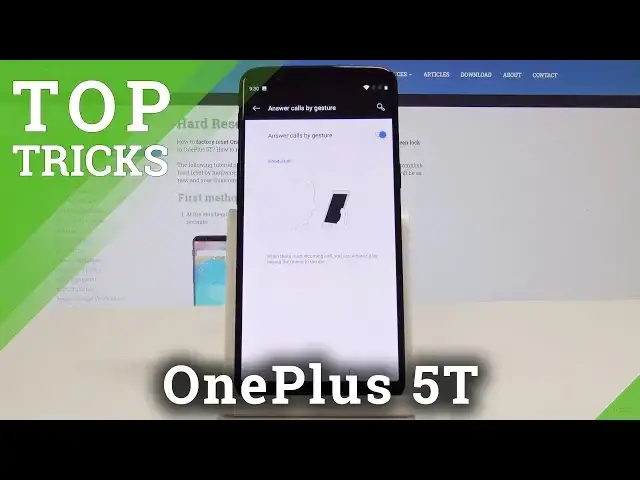
And you can also select answer calls by gestures, so if you will open it and activate it here
2:31
you will be able to answer incoming call by using the phone to ear. So it will be automatically
2:37
answered. So let's go back. You can obviously switch it off as only you prefer. You can also
2:43
select double tap to wake so if it will be activated, you will be able to wake up your device with
2:50
double tapping. You can also select music control and actually you can personalize all these gestures
2:57
So let's go back and let me show you the second trick. which is recorder So let go to the list of all applications and now find and select recorder It this green icon And now you can simply tap on recorder On recorder sorry it settings and now you can just tap on mic so just tap over here
3:21
and now you can record anything. So let me show you, we are recording it right now
3:27
so just tap on stop. Here will be your audio files, you can
3:32
name your recording, so for example, hard reset, Heart, reset, re-whoopsie, heart, reset
3:48
And tap on save to save your audio, and here it is, now you can
3:57
So as you can see, as you can see, here is our audio. So you can record whatever you want to
4:03
Okay, so let's go back and let's go to the fourth trick
4:07
super feature which is notes. So just open the list of all applications. And now in this many
4:14
find and pick notes, the orange one. Here you can simply add some note. You can enter it here
4:26
For example, follow us on Instagram and tap on OK. And here by tapping on more icon
4:37
You can share this note as a text or as a picture or even you can send to self
4:44
So just go back You can also tap an alarm on an alarm icon and here you can make a reminder from this note So if you will tap on for example 23rd of February and for example for 3 this note
5:03
will ring as an alarm. And obviously you can delete it just by tapping on bin icon over here
5:09
So just confirm it by tapping on delete. So that's it and it's time for the very last but also
5:16
very cool trick, which is voice search. So just open a list of all apps. And here you will notice
5:23
voice search. So just tap on it. And simply by speaking to this, just let's go back because it
5:30
will hear all that I'm saying. If you will speak anything, it will locate it and will give you
5:37
the answer. So let's, for example, open it. What's the weather in LA
5:46
So as you can see, Google just answer my question. So for example, let's do it one more time
5:57
Can you open hard reset info? And here you have hard reset info
6:05
So that's it. As you can see, it's very important and very useful and it can help you on your daily basis
6:11
It can make your day easier and better and more comfy. So thanks for watching
6:16
please subscribe our channel and leave the top of it