0:00
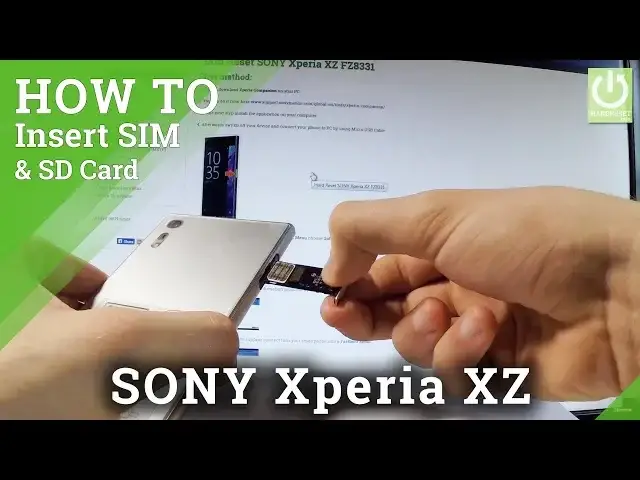
Here I have Sony Xperia XZ and let me show you how to insert here nano SIM and micro
0:11
SD card. So at the very beginning let me start by holding a power key
0:15
Let's choose power off and wait until your device will be completely switched off
0:22
Afterwards you have to remove a tray from your device. The tray is located at the left edge of the device right here
0:27
So let's remove this tray by opening the protection and let's remove the whole thing
0:34
As you can see here you can insert micro SD and nano SIM
0:37
At first let's insert micro SD with the characteristic edge right here and let's put this card as
0:44
simple as that. Now let's insert the nano SIM card with the characteristic edge right here and put this
0:55
card in that position. Now let's put this tray into your device
1:03
Let's press it to the end and let me just switch on the phone to check if both cards
1:09
are working properly. Sony Xperia is turning on, let's wait a few seconds
1:24
Excellent, let's unlock the screen and let me check if both cards are working properly
1:30
Let's tap apps icon, choose settings. Let's scroll down and let me choose storage and memory
1:39
Choose more key right here, advanced. Tap storage and as you can see the device is reading our SD card and the phone is connected
1:48
to a mobile network so it simply means that our SIM card is also working properly
1:53
So everything went well, thank you for watching, please subscribe our channel and leave thumbs