0:00
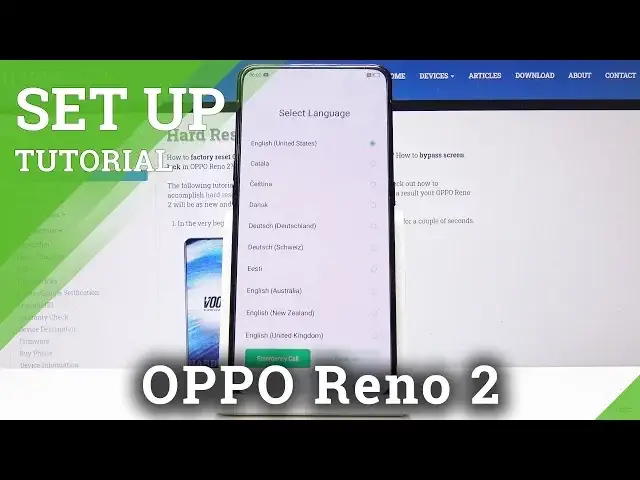
Here I've got OPPO Reno2 and let me show you how to set up the following device
0:09
So at the very beginning you have to pick the language that you would like to have your device in
0:12
As you can see you've got a bunch of possibilities here, but I will leave it as it is, so English
0:19
and then click on next. Now we have to select the region
0:24
Let me choose Australia and then tap on continue. Here it's time to connect to your Wi-Fi, so I will choose mine, which is hardwizard.info
0:34
Wait until it's connected and when you see the connected tab here, click on next
0:40
Here you can come along with all terms of usage, so come along with all the privacy
0:44
policy and also user agreement and if you agree with all the above terms, click on continue
0:49
and then confirm that you agree with all the terms and conditions
0:53
Now you can also join user experiments program. You can obviously skip it, but I will join it
0:59
Then also upload error log data and now give your device a couple of seconds
1:05
If you would like to copy data from your previous phone, it's time to do it, but I will not
1:10
do it as I would like to set it as a brand new one
1:16
And here you can use your Google account, which will allow you to have access to some more advanced features and I will definitely log in with my Gmail address
1:25
So here you can enter either email or phone number. In my case it's hard reset
1:35
One at gmail.com. And then tap on next
1:46
Here you can enter the password, so let me do it off the screen
1:51
Here it is. So now tap on next and it's time to come along with all Google and Google Play terms of service
1:59
and privacy policy and if you agree with all the above, click on I agree
2:17
And here if you'd like to activate backup to Google Drive and some other features by
2:21
Google accept them or you can switch off for example location if you want to
2:26
And then tap on accept to confirm your selection of some particular Google services
2:30
Then tap on next. Come along with all the information. Here you can teach your assistant to recognize your voice, but let me skip it for now
2:44
And now you can also add lockscreen password and fingerprint if you want to, but I will
2:48
skip it for now. You can do it later through the settings and you can also find a tutorial on how to add
2:53
a fingerprint or lockscreen on our YouTube channel. And here you can also activate your Wi-Fi assistant if you want to, but I will not do
3:01
it all. So you can activate auto update, continue and here you can also import data from previous
3:09
phone, but I will set this OPPO as a new one. And that is all
3:13
You've just set up your brand new OPPO Reno2. Tap on start and now you can use your device in a normal way
3:20
You can personalize it, change the wallpaper and whatever you want to. I will start with changing the brightness. Hello
3:28
Let me change the brightness and then you can smoothly use your phone
3:32
So that will be all. This is how you can set up your phone. Thank you for watching. Please subscribe to our channel and leave the thumbs up