Up next in 10


Find out more about SAMSUNG Galaxy Tab S9 FE Plus:
https://www.hardreset.info/devices/samsung/samsung-galaxy-tab-s9-fe-plus/tutorials/
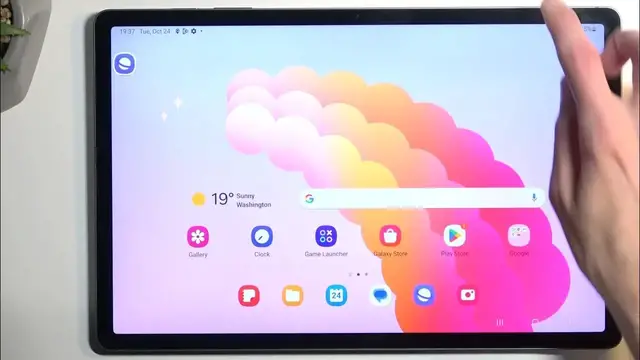
Discover the hidden features and top tricks of your SAMSUNG Galaxy Tab S9 Plus with these handy tips and tricks. Explore the device's advanced functionalities and make the most out of your device experience. From productivity hacks to customization options, delve into the various capabilities of your SAMSUNG Galaxy Tab S9+.
How to use top tricks on SAMSUNG Galaxy Tab S9 FE Plus? How to use best features on SAMSUNG Galaxy Tab S9 FE Plus?
#TopTricks #BestFeatures #SAMSUNGGalaxyTabS9FEPlus
Follow us on Instagram ► https://www.instagram.com/hardreset.info
Like us on Facebook ► https://www.facebook.com/hardresetinfo/
Tweet us on Twitter ► https://twitter.com/HardResetI
Support us on TikTok ► https://www.tiktok.com/@hardreset.info
Use Reset Guides for many popular Apps ► https://www.hardreset.info/apps/apps/
Show More Show Less View Video Transcript
0:00
Welcome. And for me, I have the Samsung Galaxy Tab S9 FE Plus, which is an absolute mouthful
0:08
And today I'll show you a couple tweaks and tricks you can do on this tablet
0:16
So, starting off, I'm going to touch upon the dock and panel, which kind of go hand in hand
0:22
and I would recommend choosing one to utilize for the most part, depending on what kind of user you are
0:28
So let me explain this a little bit further. Let's open up some kind of application, like settings, good enough
0:35
And as you can see, the dock will automatically show up. Now by default, with button navigation, it will permanently stay on
0:41
But if you're using gesture navigation, you can hold it, and it will actually hide away
0:46
And that being said, if you're using the default launcher, the Samsung one
0:52
then by all means go with the dock or panel, whichever one you want
0:58
if you plan to use any kind of third-party launcher, Samsung basically shows you a middle finger and say
1:04
you're not using our launcher, you're not using our dock in this case. And at that point, you are only left with the side panel right here
1:11
which arguably basically does the same job and has been out for longer
1:16
This is the dock was basically introduced by Google, and Samsung decided to be like, yoink
1:21
We're going to call it ours, change it, and then remove it for people that don't want to use our launcher
1:26
which is just, like I said, a middle finger from them. I mean, what do you expect from a company that blocks their devices from any kind of usability
1:34
because you bought it for a little bit cheaper than I would like you to, for instance, when you're in Mexico
1:41
If you know, you know. Anyway, so with the dock, we can do a couple different things
1:50
like, for instance, opening up applications by just dragging them out of it and dropping in them either on left, right, bottom, top
1:56
Oops, I did drop it by mistake. Let's try that again. As you can see, it shows you the area where you will drop it, what will happen
2:05
So if I drag it the top, bottom, left, right, and middle as well
2:10
In the middle, it will open up as a pop-up view, which is a nice feature. And in addition to pop-up view, we have additional things that we can do, like, for instance
2:18
dragging it out of the screen, and it will minimize itself. We can also completely minimize it into an uphead, like so
2:24
And we can have several of these applications. applications as an app heads open up at the same time, so just to kind of showcase this
2:33
Okay, no one cares. There we go. Let's open up another one
2:41
Stop! Are you effing kidding me, Samsung? There we go. I took a little bit more mental further than I wanted to expand on this, but
2:56
whatever so once we have a bunch of applications you can now pick and choose out of
3:02
them and can have all of them open as you can see and additionally you can still split screen so now we have two different split screens three different hops open and you could go even further
3:19
But I think this showcases this kind of feature pretty well. Okay. Now moving on into app pairs, which I will showcase right now, just need to prep for this
3:33
So this already has two apps open. We're going to add like one more
3:38
There we go. So now we have three different apps open. And we pull out our sidebar
3:44
You can see nothing is here. So I'm going to close this. And now it shows up right here
3:51
Now this is only a temporary section right here. So what you will want to do is grab it
3:56
There we go. And drag it below the line. Drop it. And now it becomes a permanent application
4:02
that you can quickly open up whenever you want this kind of op pair combo
4:07
So you can have a bunch of applications. combined together and have them all open up at once in the position that you
4:13
have selected them when you added the app pair to like the permanent section
4:19
let's call it which is a pretty handy thing you can do the same thing with the
4:23
dock though I haven't really checked it out all that much because I my phone
4:30
with a launcher tells me go f yourself with the dock and I can only use the sidebar
4:36
which is kind of why I'm focusing more on the sidebar, as it's more versatile to a lot of people
4:43
because you can use it with the third-party launchers. Now, moving on, we have in the sidebar sticking with it
4:54
a section where you can open up all the applications and quickly pull them out just a little kind of reminder
5:01
because the dock has the same thing. And additionally, we have the little gear icon right here
5:06
which allows us to add additional panels to it. So I'm going to, for instance, add the Smart Select one
5:12
and showcase this one. So now you can swipe on the panel and it will cycle through each one of the ones that have added
5:19
And additionally, if you are signed into your Samsung account, you can download more from Samsung store
5:25
Do keep in mind the good ones are paid, which is, again, just kind of atrocious
5:29
They're only like a, I don't know, buck. But still, after you paid for a development
5:36
already a decent amount you still need to spend more to utilize a feature to a
5:40
little bit better extent which I kind of consider to be just unreasonable
5:49
but if you find any kind of panel there that really suits your need obviously
5:55
you can buy it it's not expensive like I said it's a little I think like a 99
5:59
cents so it's reasonable it just I find it a little bit unreasonable that you need
6:05
to purchase it. Okay. So that being said, let's move over to other options like the gestures
6:14
So if we go under the display and scroll down to navigation bar you will see that we have button navigation and swipe gestures I personally like the gesture so that what I going to select And it will change how the device functions a little bit
6:32
in terms of, for instance, the dock specifically. So you can now hold the area right here where you had the dock, and it will hide it
6:40
So you can get rid of it, and when you want to have it back
6:44
you can just press your finger again at the bottom of the screen, and it will reappear
6:48
additionally we can also hide the little kind of like a guide
6:54
a gesture hint as it's called but because the way it's doing it is absolutely
7:00
a thing stupid which is by shifting everything down it causes problems which
7:05
majority of us don't want to deal with so what will happen is when you're now swiping up
7:10
it won't always recognize the gesture because it's now shifted off the screen
7:16
a little bit so it's really needs to to be precise. And on my device, my phone, I ended up sometimes swiping four times in a row
7:26
from the bottom and no I'm not kind of like messing up the gesture. I am literally starting from
7:31
the bezel onto the screen and the device is like, what do you want to do? Which makes it obviously
7:39
infuriating. So if you encounter problems with this I recommend just be enabling the gesture
7:46
hint. It is looking better without it cleaner, but it causes problems
7:52
which I'm pretty sure any, none of us wants to deal with. So yeah
7:58
It would be nice if Samsung could fix it but I guess we're asking for a little bit too much
8:05
Now moving on, we have the motion smoothness that's called. Basically a screen
8:14
refresh rate and simple and actual terms. And in here we have two different options. We have the adaptive and we have the standard
8:23
Now for a device that costs, what is it, $700, this piece of hunko junk, even though it's cold
8:29
Fee, it comes only with 90 hertz refresh rate, which a little bit low, but it's still better
8:35
than 60. But that being said, there isn't I'm pointing this out is because some people might want
8:41
to prioritize battery life only and maybe use this device as a ebook reader which is fine
8:48
And in this case you probably might want to change it to standard because this will give you
8:52
a better screen on time. Now when it comes onto scrolling up and down in here for instance, it won't look as good
8:59
as it does with 90 because it will be at that point at 60, so a little bit more choppy looking
9:05
and it might be a little bit of a jarring change when you go from 90 to lower one
9:11
It looks obviously super good when you switch from 60 to 90, but I'm still giving this as an option for people that want to prioritize simply battery life only
9:21
And that being said, I want to point out that the adaptive option is called adaptive
9:26
because it basically switches between these two refresh rates, so the user utilizes 90 and 60 at the same time
9:34
So as right now the display is just kind of stationary nothing is moving on the display so it is finding it at 60 frames While the moment I start scrolling anything up and down or anything starts moving on the
9:48
display, it will switch to 90, giving it the nice smooth motion
9:53
Okay, so that out of the way, let's move over to, I think it's going to be the last option
9:59
which is the... Where is it? There we go. mode. So by default
10:06
Samsung always sets it, sets this section too vivid. And I find this to be
10:12
way too saturated for specific images like this one. You can clearly see this looks
10:20
absolutely insanely saturated. So I personally prefer the natural look which gives
10:28
a little bit of a more reasonable representation of colors. And I do
10:34
understand that some people will like vivid, which is completely fine. And I also know why
10:38
Samsung is using the Vivid mode, because let's be honest, in a store, when you have a bunch of
10:44
tablets set side by side, the one that will stick out the most will be the one that almost
10:48
radiates colors away, basically a rainbow bar. So, therefore, vivid mode. But for day-to-day use
10:56
for me, I personally prefer natural because it's not assaulting my eyes as much. So there we go
11:04
And I want to point out one more thing here in the display section for people that might
11:10
be interested in it. You can disable the edge panel and task bar, both of them or just one of them, right over here
11:17
So if you don't want to have this show up or be visible for whatever reason, you can just
11:23
toggle it off and it's now gone. And we have also some other settings in here as long as it's enabled
11:30
And same goes for the task bar which you can see right here. we do have, not as well, edge panel, sorry
11:36
And we also have additional settings for it located in here that will allow we to customize it a little bit further with, I think it's here
11:44
Yep. So you can change colors, position of it, size, transparency, and so on
11:51
So you can make it stick out a little bit more and be more visible as the default one, the white one, with transparency
11:58
is sometimes very hard to see. So obviously you can customize that
12:03
and just to showcase this. Let's pick some vibrant color, size, we can increase it, transparency
12:12
That's actually less, more transparent, so low, and it becomes now completely solid
12:18
We can also extend it further, and as you can see, it becomes basically a button visible from side panel
12:28
And obviously, it still works the same way as I did before. It's just more visible
12:33
So, with that being said, this would conclude the tweaks and tricks that I wanted to show you
12:39
And if you found this very helpful, don't forget to hit like, subscribe, and thanks for watching
Consumer Electronics
Mobile Apps & Add-Ons
Science