0:00
Welcome today I am with PocoX4 Pro and I'm going to show you a couple camera tricks
0:12
So the first when you try to take photo we can make it normally by tapping on the screen just like that on this shutter
0:18
but we can also use this volume barrels right here. So when you tap once on the volume button volume up after two seconds the photo will be taken and the same
0:29
when you tap on the volume down. So it's two seconds delay
0:34
We can also change it. To make it, we have to open the settings
0:40
And right now, when you scroll down, you can find the volume buttons function. So we can switch from the shutter countdown to the normal shutter
0:46
And take a look right now. When you hold your phone like that, you can use the volume buttons and without this shutter
0:53
delay, you can take normally photos. When you click and hold the volume button, up and down, you can record the short video
1:03
The same when you click and hold this shutter. When you release, video will be finished
1:12
You can also change the brightness level by tapping on the screen and moving this sun icon
1:17
to decrease or increase brightness level To make it automatically just tap on the screen You can make the same by going to the video mode It also working as you can see
1:31
Okay, when you are in the photo mode, you can also quickly change color and temperature
1:36
by tapping right here and then choosing one of the following preset
1:50
As you can see there is a few different modes. Just select one of them and then tap on the shutter to take photo
2:00
And that's how it looks. Okay, right now I'm going to turn it off and go for the original
2:11
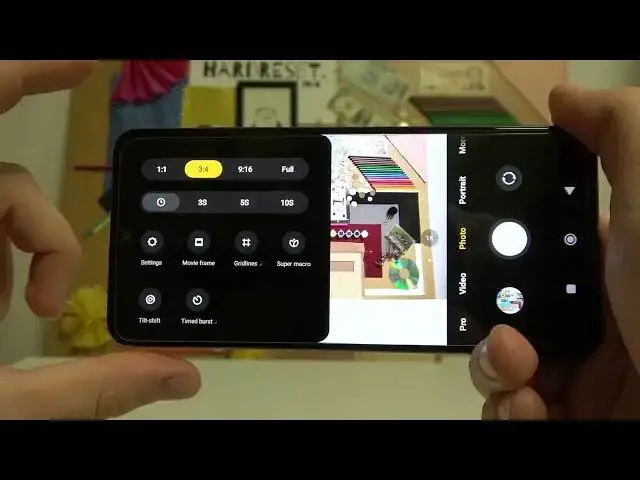
Right here. The next option that we can use in this smartphone, we need up right here
2:16
we can add this delay to the shutter between 3, 5, or 10,000, seconds
2:22
So select, click on the shutter and after this time photo will be taken, and this feature
2:26
is useful when you're taking the tripod photos. Okay, right now let's turn it off and right now we are going for the settings
2:38
So when we are in the settings, I show you that we can set up the shutter on the volume
2:44
buttons but you can also zoom in and zoom out take a look Now we switch press volume up to smoothly zoom in
2:55
and volume down to zoom out we can also switch to the ultra wide lens just like that Okay
3:13
Let's go back for the settings. We can also find another option
3:20
It's called Top to Take Photo. So when you enable this one, you can just tap on the screen and the photo will be also taken
3:27
So it's useful when you hold your phone like that and you can reach this bottom shutter
3:31
As you can see, it works really good. And I think it will be useful to you
3:39
So another cool feature that we can find in the settings. Let me just turn off this one
3:45
You can find right here in this customized settings so we can change your shutter sound
3:52
Currently set up on the default but you can be retro, film or modern
4:00
As you can hear, the shutter sound has changed. If you want to completely turn it off, just go for the settings
4:08
just go for the settings and select this option As you can hear right now this shutter is not making any sound So that how we can turn it off When you go for the other modes you can find for example the dual video So in the dual video
4:25
you can simply take photo from the two cameras at the same time
4:32
Wait a minute. I just want to remove the selfie camera. but actually I'm unable
4:41
So take look. You can just record video at the same time from the two lenses, from the two cameras, basically
4:50
When you tap on the shutter, you can make it just like that. And you're also able to take photos while recording this kind of video
4:59
And to switch the lenses, you have to tap right here. And you can switch modes
5:06
You can make it the half of the screen. or just get a picture on the picture
5:10
Okay, let me just turn it off right now. And basically that's all
5:15
So I think that's all tricks that you can find in this smartphone
5:20
I hope that you will find this tutorial useful. And if you do, just remember to love a like, comment and subscribe to our Hard Reset Info channel