0:00
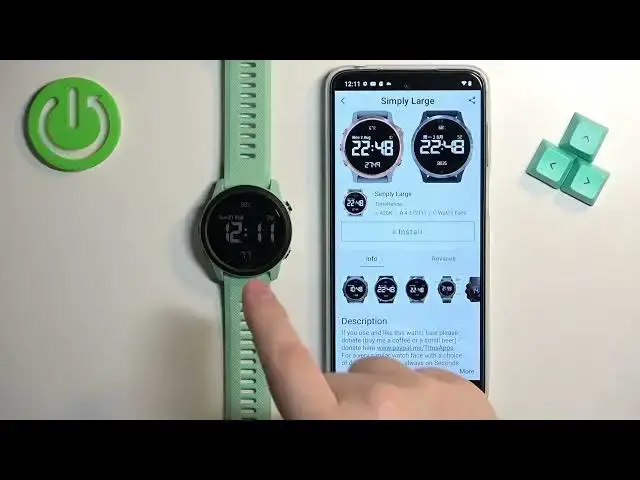
Welcome! In front of me I have Garmin forerunner 745 and I'm gonna show you
0:06
how to download additional watch faces on this watch. Before we start, if you want to download additional watch faces on this watch
0:16
your watch needs to be paired with a phone via the Garmin Connect application
0:21
Once the devices are paired together we can continue. And now we need to download
0:26
and install Connect IQ Store application on the phone that is paired with our watch
0:31
So let's open the App Store. I'm gonna open Google Play Store because
0:36
I'm using Android device but you can also open the App Store on iPhone and
0:40
you can find the app there. So I'm gonna tap on the Play Store. For some reason
0:46
it's rotated so let's fix it. And once you open the App Store tap on search and
0:51
type in Connect IQ. And then tap on search to look for the app. And you
1:00
should see application like this Connect IQ Store by Garmin. Install this
1:04
application. So I'm gonna tap on the install button. And after the application is done installing you can tap on the open
1:19
button to open it. After you open the application you should see the welcome
1:25
page. Now tap on the welcome button. Tap on continue or you can tap on switch
1:32
accounts to use different account. I'm just gonna tap on continue. Check the box
1:38
Tap on next. Allow the permission. And after a second or two the IQ Store should load. And here we have the main
1:53
page of IQ Store. You have different categories of apps and watch faces. You
1:57
can browse them if you want to look for something you like. I'm just gonna tap on
2:01
search and then select watch faces to narrow my search only to watch faces
2:06
Now let's scroll through the list. Find the watch face we want to download. I
2:11
know for example maybe this one. Tap on it and once you open the or rather
2:17
select the watch face you will see the page for it. The info page. We have a
2:22
description about the watch face. What changed. Screenshots. You can tap on
2:27
reviews to see the reviews of course. And if you're not sure the watch face
2:32
will work on your watch you can scroll down. Tap on compatible devices. Scroll
2:39
through the list and check if your Forerunner 745 is right here on the list
2:46
And it is. So this watch face should work with our watch. Now let's tap on the
2:51
install button to download and install it. As you can see it's installing
2:56
Sometimes it might take quite a while so let's wait. Usually you get the pop-up that a watch face is done installing. As you can see
3:14
we didn't get any but the watch face is applied on our watch. We can go to the
3:21
search. Go back to search. Tap on my device and then my watch faces. And as
3:29
you can see it's still not installed. Something went wrong but the watch face is clearly applied on our watch. This is something that's weird. Let's try
3:36
tapping on install again. Oh this time we got this pop-up. Okay so usually when the watch face installs you
3:49
will see this pop-up. You can tap on get it and you will see the uninstall button
3:53
It means that the watch face is installed on your watch and of course it's gonna be applied automatically on your watch once you install it. Also like
4:02
we did before you can always go back to my device or rather go to my device. Tap
4:07
on my watch faces to see the list of installed watch faces. And here you can
4:11
tap on them to open the watch face page. You can uninstall them if you want. And
4:17
also if you uninstall them you will see that they will appear on the list called
4:23
not installed. So you have a history of watch faces you installed previously on
4:27
your watch and you can simply go back and install them again if you want to
4:31
Okay and once you're done you can close the app and that's how you install or
4:36
rather download additional watch faces on this watch. Thank you for watching. If
4:41
you found this video helpful please consider subscribing to our channel and leaving the like on the video