Up next in 10


OPPO Reno7 5G Tutorials:
https://www.hardreset.info/devices/oppo/oppo-reno7-5g/
Tips and tricks to get the most out of OPPO Reno7 5G. The best features, secret settings, and most helpful options are revealed here. Learn how to master OPPO Reno7 5G. Find out how to make the best usage of OPPO Reno7 5G. Use our hidden secrets for OPPO Reno7 5G.
#HonorTricks #TipsTricks #OppoReno7
Follow us on Instagram ► https://www.instagram.com/hardreset.info
Like us on Facebook ► https://www.facebook.com/hardresetinfo/
Tweet us on Twitter ► https://twitter.com/HardResetI
Support us on TikTok ► https://www.tiktok.com/@hardreset.info
Use Reset Guides for many popular Apps ► https://www.hardreset.info/apps/apps/
Show More Show Less View Video Transcript
0:00
Welcome and follow me as I up Reno7 and today I'll show you a couple tweaks and
0:12
tricks you can do on this phone. So let's begin with the dark mode which can be
0:17
found under the display section in your settings, display and brightness and we
0:23
have just the light and the dark. Now typically you could just switch between
0:27
light or dark obviously but nowadays we also have another option which is the
0:32
auto switch. Once you enable it as you can see it gives a couple additional
0:36
options so sunset to sunrise or custom which basically allows you to set it up
0:42
so the dark mode turns on at a specific time and then switches off once the
0:47
time passes. So you basically have a dark mode on schedule which in my case would
0:53
be a better option. Then if we go back we can also find under the display
1:00
section another feature which is the video color enhancer. So there we go
1:05
right here and we have like a side-by-side image of it basically how it
1:10
will affect but just a kind of like a simple explanation it just increases the
1:15
brightness and a little bit more saturation to it and makes the image just pop a little bit because of that. So if there is something that you like do
1:23
enable this. Moving on to the next option which is also under the display and
1:28
brightness it's the refresh rate and I believe it is set to high by default so
1:33
that's at least nice but for people that would prefer to save their battery life
1:38
instead of having this smooth display which I'm pretty sure there are some
1:42
people like that you can change it to standard right here. This will reduce the
1:47
the smoothness of your display but also give you additional battery life and you
1:53
can kind of see how it will affect the image and basically right here though
1:58
this difference is significantly exaggerated just to kind of like drive the point how it affects it. Obviously it's not gonna be that as drastic but
2:07
that is the general difference. Anyway let's move over to next thing which is
2:15
just a simple split-screen. Now I do recommend using split-screen for or at
2:22
least what I use it for which is listening to YouTube and additionally
2:26
for instance browsing the web. That is the reason for this is because you are
2:31
not locked into listening to whatever you are listening on YouTube. You can
2:35
browse the web while for instance continue to listen to music there and the way you were to do it is by simply launching YouTube. Now you can launch
2:44
YouTube first I personally prefer it that way. That way YouTube is at the top
2:48
and because it is at the top browser will be at the bottom and the reason I
2:53
prefer it like that way is when you're holding the phone it's harder to reach all the way to the top and when you're actually like browsing the web and
3:00
listening music in the background you just kind of want to have everything
3:04
more under your fingertip rather than right at the top. So that's why I open it
3:08
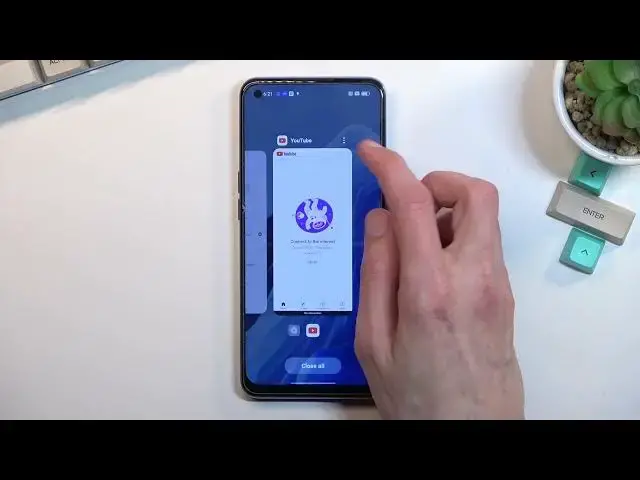
up first. So to do it open up YouTube go to recent and then top on that three
3:13
dots right here select split-screen and this will now allow you to open up
3:18
secondary app. Now we can actually open up any kind of other app if you want to
3:23
We're not limited to our browser. There are apps that will not run in
3:29
split-screen so just keep that in mind. Apps like that which I know from top of
3:34
my head is for instance camera. Camera always goes to full screen so if you
3:39
have already for instance YouTube open and it you have the option to open up
3:43
secondary app. If you try to open up app that isn't supported in split-screen it
3:47
will just exit out split-screen entirely and go as a main app. But anyway as you
3:53
can see right now we have two different apps open and even though I don't have a network you get the point how this actually functions. So yeah and
4:02
additionally if you close or basically swipe up and go home YouTube will
4:07
continue to play in the background even though it's in this kind of weird state
4:11
Obviously it will stop playing if you decide to lock the device. And moving on
4:19
to the last option which I wanted to showcase it's going to be the personalized section and the settings. Now this allows you to just change a
4:26
bunch of settings which are just for customization which are neatly organized
4:31
into a single category right here. So obviously we have the boring ones like
4:35
wallpaper always on display you can change those if you want to. But the more
4:40
more interesting ones are right here so the icons which we can quickly and
4:45
simply change icon packs. Normally phones don't really include that or not every
4:50
phone so it's a little bit harder to change them but here we have just a nice
4:56
easy way of having them all in a single place so you can change them on the fly
5:01
And as you can see you can change also the sizes, show up names so you can get
5:06
rid of these if you want to have quite a decent amount of customization right
5:10
here alone. Then we have the toggles right here so you can change the shapes
5:16
colors of them if you want to additional obviously customizations. And then below
5:22
that actually here we have the colors for these kind of toggles. Obviously this
5:26
doesn't include only the toggles right here it will also include as you can see
5:30
text, buttons, toggles like these ones so yeah we have a couple of them. Now we
5:37
have a couple of pre-made ones but you can obviously create a custom one and set your own color scheme however you like. And furthermore we have several
5:46
other things like font and display size or font not font font and display
5:52
size so you can choose the fonts. We have two. I have never downloaded any kind of
5:57
fonts so I don't know how that actually works but assuming it would work just as
6:02
the icon packs if you can't download fonts I would assume they would show up
6:07
here. And obviously you have the sizes of them and so on. So yeah I highly recommend
6:12
just going through these customizing it to your liking so you can actually feel
6:16
like the phone that you have feels like it's yours. But that being said I should
6:22
conclude the relatively short list of tweaks that I showcased here and if you
6:27
found this video helpful don't forget to hit like, subscribe and thanks for watching
#Beauty & Fitness
#Computers & Electronics
#Consumer Electronics
#Hobbies & Leisure
#Paintball