Up next in 10

OPPO Find X5 Pro Camera Tricks & Tips | Improve OPPO Camera with Hidden Features
Apr 6, 2024

More info about OPPO Find X5 Pro:
https://www.hardreset.info/devices/oppo/oppo-find-x5-pro/
How to take nice pictures with OPPO Find X5 Pro camera? The list of tips and tricks for OPPO Find X5 Pro camera will help you get more out of your device. Take amazing photos and cool videos with our hacks and camera features. Use the hidden settings, advanced options, and cool modes. Check out how to become the pro user OPPO Find X5 Pro camera.
#TipsCameraOppo #CameraOppo #OppoFindX5Pro
Follow us on Instagram ► https://www.instagram.com/hardreset.info
Like us on Facebook ► https://www.facebook.com/hardresetinfo/
Tweet us on Twitter ► https://twitter.com/HardResetI
Support us on TikTok ► https://www.tiktok.com/@hardreset.info
Use Reset Guides for many popular Apps ► https://www.hardreset.info/apps/apps/
Show More Show Less View Video Transcript
0:00
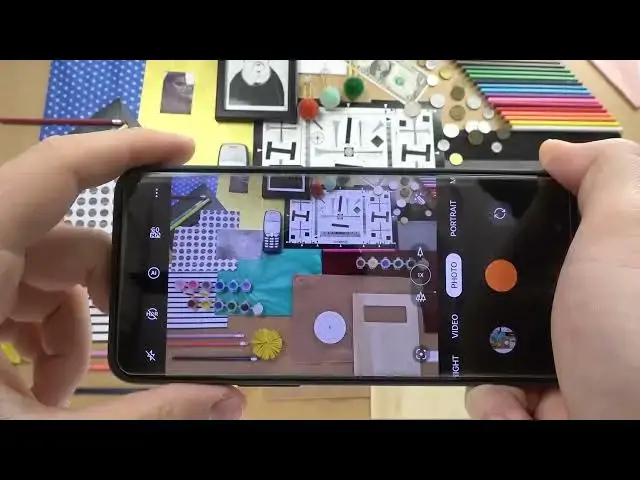
Welcome guys today I'm with Oppo Find X5 Pro and I'm going to show you a couple camera tricks
0:12
So with the first we are going to start from the standard modes. We are right now at the photo mode and take a look
0:18
You can quickly change the brightness level by tapping on the screen and moving the sun icon like that to decrease or increase brightness level
0:29
You can make it also automatically by tapping on the screen once. It works the same, for example, at the video mode. Take a look
0:37
But this slider we got at the bottom of the screen in this place
0:44
Okay, so right now when you are in photo mode, we can also use a shutter function
0:50
When you click and hold, you can quickly record the video and you can move the shutter to this log
0:57
Right now, we don't have to hold this shutter. anymore and as you can see we can simply switch between the lenses just like that
1:04
we can take photos while recording we can pause video continue and finish by
1:12
tapping on the shutter bottle one more time when you use the volume buttons they are
1:17
located right here when you click once you can take photos like like the normal shutter
1:25
function so volume down volume up as you can see simple way to take photos without tapping on the screen and what is
1:36
interesting that we can actually change function of these buttons so how we can make it we have to
1:42
tap right here on these three dots and next we have to go forward for the settings then you rotate
1:49
the phone right now we have to scroll down until we find the volume button action so click here and we
1:56
we can switch to the zoom volume or live with the shutter Let test the zoom for example Press volume up to zoom in As you can see right now on the left upper corner we got this small preview
2:21
how it looks normally and on the whole screen we got crop photo and actually the quality of this zoom is impressive
2:30
If you want to zoom out, you have to click the volume down button, click and hold for sure
2:36
to zoom out smoothly. Of course, you can click once. Just like that, you can decide how you want to zoom out or zoom in
2:48
And we can also change lenses from the ultra-white lens to the wide lens and the telephoto lens
2:54
Just like that. Okay, so there was about the zoom, about the shutter
2:59
we can also click in this place. And when you are in the photo mode, we can apply filters
3:05
As you can see, we can find here a few presets. And there, there it is, they change color at the temperature actually right now
3:14
If you want to take photo, for example, over this filter, you have to click on it once
3:19
then tap on the shutter, and the photo was taken. As you can see, there's actually a lot of different filters
3:26
And if you want to go back to the original look of yourteau, look of your preview in the camera, just pick this one original
3:33
Okay, right now we can find also a very useful option. It will be actually hidden in the more modes
3:41
So at the first I'm going to take photo with the normal mode. And right now let's go for the more modes and pick higher resolution mode
3:48
It's right here. We have to keep our device steady and right now we can make small comparison
3:57
So we can take a look on above photos. Let me just enable the auto rotation screen
4:02
Okay, there it is. And right now we can simply just compare the photos So that the high resolution mode And as you can see in this mode we can zoom in very very close
4:18
The quality is really good. Let's switch to the normal photo mode and that's how it looks
4:27
We can try to crop that photo. so we are going to focus for sure for this phone keyboard
4:46
okay let's take it like that i mean it works weird about it never mind uh let's uh let's stay with this one
5:01
now let's save let's rotate like that and take look how the crop looks from the normal mode
5:10
And right now let's quickly move to this high resolution mode. Okay, that's normal
5:17
That will be high resolution. As you can see, it looks definitely better
5:23
And we can spot definitely more details than in the normal crop photo
5:27
So to assume, I mean to sum up, you have to use this high resolution mode to get more
5:33
details on your photos. Okay, let's turn it off. Right now, we can click, I mean tap in this place, where we can find other options
5:44
Like, for example, we can add delay to our shutter. We get three or ten seconds
5:51
Let's select three, click on the shutter, and after the three seconds, the photo will be taken
5:59
Okay, let's turn it off, and I think that right now it's time to move to the settings
6:03
where we can find other useful options. So when you scroll down, we can find the shunning methods
6:13
And that the option called Top to Capture Let me just enable and show you how it works So normally when you hold your phone like that and you try to reach this bottom shutter sometimes you cannot
6:27
So we can just click on the screen and the photo will be also taken
6:32
So if you have small hand and you are not able to reach the volume buttons or this shutter
6:40
at the bottom, you can just click on the screen runs. and you will take photo
6:44
Okay, let's move forward through the settings. As you can see in this place you can also change the function of our shutter
6:54
So previously I've showed you what is going to happen when we click and hold the shutter button
7:00
So we'll basically record the video, but we can take the birth shot
7:06
So take look. We can take 20 photos. and when we click in this place in the gallery we can just take a look for all of them
7:19
and it looks like very short video as you can see okay let's go back and let's
7:28
take a look what we can find more in the settings and that's the volume button
7:33
adjustment I just show you and that's also the quick lunch so take look when
7:40
you enable this option and lock our screen, we can double press volume down bottom quickly and the camera will be open
7:48
So it's definitely faster than opening this camera like that or like that
7:59
Okay, so actually that's all from the tricks of this Op. If you find this video helpful, remember to live a live like that
8:11
comment and subscribe