0:00
Hello everybody, welcome back to our 360
0:02
info channel. In today's video, I'll
0:04
show you how to fix low volume problem
0:06
on your OnePlus Nord 6.
0:13
So first, we want to adjust media and
0:15
the call volume. That's why we open up
0:17
the phone app first and you may be
0:21
First, we can press the power Sorry, not
0:23
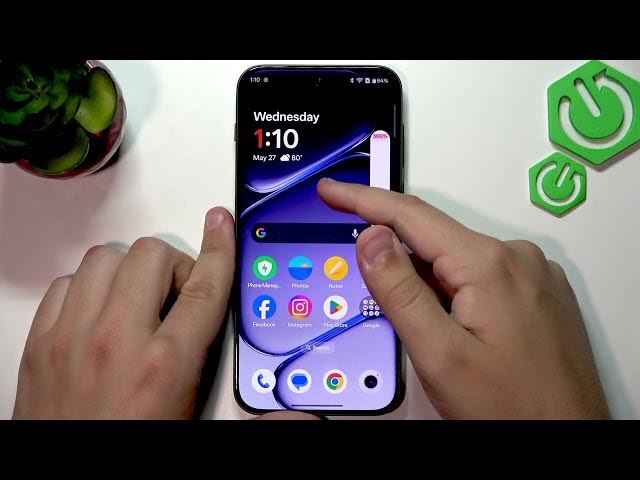
power button, but the volume up button
0:25
and it will increase our call volume.
0:27
So, as you guys can see, it is increased
0:31
and this is what we want to do. We want
0:33
to see the red board right here.
0:35
Now, what are we wanted to do is go over
0:37
into the settings and in the settings,
0:39
we need to go and open up sound and
0:43
Here, now as you guys can see, there's
0:45
no option to change your call volume.
0:47
That's why we did that in the
0:49
um in the phone app. And what are we
0:51
going to do is change the media volume
0:53
right here. So, we can increase it and
0:56
of course, I recommend putting it all
0:58
the way to the right. This is very
0:59
important. So, that means you will have
1:01
it at the max volume. And of course, you
1:04
can leave the settings.
1:06
You can um boost it up by as you guys
1:12
And after that, what are we wanted to do
1:14
is let's go back to the settings right
1:17
and go to do not disturb. Make sure that
1:20
do not disturb is disabled. This is very
1:22
important because we all know that our
1:24
notifications are being silenced
1:26
as well as uh the first call
1:29
and of course, we can ring for repeated
1:32
And now, what we want to do is we want
1:35
to make sure that we disable it.
1:36
Sometimes the sometime back, there was a
1:39
glitch when whenever you had your do not
1:41
disturb enabled, it also muted a part of
1:43
the system. So, not a completely muted,
1:45
but it definitely lowered the volume.
1:48
That's why you want to make sure that we
1:49
disable it and test it out. If you're a
1:51
big fan of do not disturb, if that
1:53
doesn't make a difference for you, make
1:55
sure to enable it back.
1:57
So, what are we going to do next is
1:59
we're going to clean our
2:03
we have one at the bottom right here.
2:07
Now, we want to clean it with a soft
2:09
brush or an air compressor. I would
2:10
recommend using an air compressor so the
2:12
air can get in and everything will get
2:14
out. Of course, if you use your
2:16
headphones for it, make sure to clean
2:18
the headphone port, which is USB-C in
2:21
And of course, there's no jack, so
2:24
that's why we use our charging port.
2:27
So, if you're using wired headphones and
2:29
your volume is lower, make sure to clean
2:31
the charging port because it can block
2:34
some of the um connection and that's why
2:36
it may seem like it's lower.
2:39
And last but not least, what are we
2:41
wanting to do is update our software to
2:43
fix any audio glitches. That's why we
2:45
open up settings and we're going to
2:47
leave sound and vibration now. Scroll
2:49
down until we see system and update and
2:52
tap on software update. Now, it is
2:55
checking for updates automatically. My
2:56
version is up to date, but if yours
2:58
isn't, you'll have a button on the
3:00
bottom to download and install the
3:02
latest version. And of course, it's very
3:05
important so that you don't carry any
3:06
old glitches on your device. That's why
3:08
we update our software so that there's
3:10
no glitches like our low volume problem.
3:13
I hope this video was helpful. If it
3:14
was, then leave a like, subscription,
3:16
and a comment and I'll see you guys in
3:19
the next one. Thank you for watching.