Up next in 10


NOKIA X10 Tutorials:
https://www.hardreset.info/devices/nokia/nokia-x10/tutorials/
The list of the best tricks and tips for NOKIA X10. Find the secret options and useful settings for NOKIA X10. Become a pro use of NOKIA X10 and use amazing functions of your new NOKIA smartphone.
#NokiaX10 #TricksNokia #TipsNokia
Follow us on Instagram ► https://www.instagram.com/hardreset.info
Like us on Facebook ► https://www.facebook.com/hardresetinfo/
Tweet us on Twitter ► https://twitter.com/HardResetI
Support us on TikTok ► https://www.tiktok.com/@hardreset.info
Use Reset Guides for many popular Apps ► https://www.hardreset.info/apps/apps/
Show More Show Less View Video Transcript
0:00
Welcome. And for me is a Nokia X10 and today I will show a couple tweaks and the tricks you can do on this phone
0:10
So to get started, let's start off by opening up our settings and navigating to display
0:18
Here we'll have two different things I want to show you. Number one would be the dark theme
0:23
When you press on the text it actually allows you to set up a schedule for the dark theme
0:28
so it will switch between light and dark mode based on the time of day
0:32
which is a pretty nice feature to have, especially for a display like this, which doesn't get really bright
0:38
so you might most certainly benefit from light mode during daytime and outside when it's sunny
0:45
While during nighttime, you probably will prefer to have it in dark mode
0:49
which will just give you this nice darkness, a screen that doesn't feel like it's sending out your irises
0:55
so there we go. And obviously if you want to you can flip it
1:00
to be permanently in dark mode or light mode by switching it right here
1:04
Now moving on to the next thing and here it's going to be the display size
1:12
There we go. So this allows you to change how big everything is on the display
1:18
Now this here shows only text, I guess icons too if we flip to the sides
1:24
and also settings. So you can make it smaller if you want to
1:29
or as you can see it also changes the text right here and just everything even that little bar at the bottom or you can just make it absolutely humongous So there we go Now this setting would be probably best for people that are visually impaired
1:43
but also it's not the only thing you could change if you have problems with reading things on your device
1:49
So you can change this, but what I would recommend actually doing is starting off
1:55
by changing the font size. So here you can change just the font
2:01
and then move over to display size. So this will then increase it quite further
2:09
But other things on display like arrows and application or how apps show up
2:15
will still retain at the previous size. So you can obviously max it out too and have both of them maxed out text and everything else
2:27
But as you can see when it comes on to things like messages it becomes really like
2:31
crammed where not much is showing on a message. So, there we go
2:38
Now moving on to next thing that I want to show, it's going to be the gesture navigation
2:43
Sorry for that. Oh, gosh. There we go. So gesture navigation can be found under system
2:51
right at the bottom of the settings, and here you'll find gestures
2:55
and you can just check system navigation. So we have been using
3:00
at least I have been using the gesture navigation, but if you prefer to use three-button navigation
3:04
you can toggle it on from here. Now, also, if you're already running three-button navigation
3:09
you can change it to gestures in here if you want to check it out And if you have never used the gestures before I going to quickly go over it so you swipe up and hold to go to recent So it will show you all the recent applications
3:20
Swipe up and just a quick swipe up will take you home
3:25
And if you are inside kind of app or anything, you can use the swipe from either side to go back
3:31
As you can see, it shows up the arrow, though when I swipe it back, it does cancel it because if I can just do this, it closes it out anyway
3:39
So pretty nice way to navigate through the device. I personally really like it
3:45
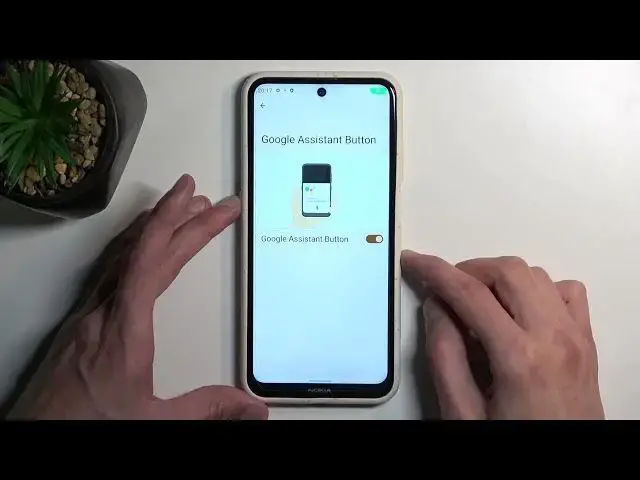
Now another thing that you can find under system gestures would be the Google Assistant button
3:53
right here. So this basically allows you to toggle off this button if you want to
4:05
So you can turn it off and now it won't do anything. Unfortunately, it looks like we cannot assign anything to this button, which kind of stupid
4:17
to be honest, but oh well. And we also have the Power Mini
4:21
Now I believe Power Mini is usually just default here, so by default it is turned off, so you
4:26
don't need to do anything. You could maybe turn it on if you tend to use your assistant and you're maybe used to having
4:35
it on Power button. But personally, I think majority of the people do prefer to have their power button stay as a power button
4:44
If you're not that kind of person, you can find it right here. And last thing that I want to show you is the recent app Now it kind of weird how this works So we do have a dock here right
4:59
So if you swipe between different pages, the dock here stays the same
5:05
Unfortunately, I don't have any other pages right here, so let me just kind of imitate this
5:09
So there we go. So you can see these apps right here, the five different apps, stay the same
5:14
but if I for instance just grab something drag it over out of the dock it replaces it with a
5:21
what I would consider like a dynamic application so it will swap it out for most recent app
5:28
most recent app that isn't on the home screen or on the page that you are right now on so
5:35
let's just say right now it's Chrome so if I open up something like Netflix
5:44
As you can see, it now switched to at Netflix. And this will continuously swap to different applications that you use
5:50
You can also remove all the apps from the dock. And this will then obviously create more of these dynamic apps
5:58
that will keep on swapping to most recent applications. So you can have a bunch of dynamic applications that show up here
6:06
based on your last used applications. But anyway, with that being said, this would conclude all the tweaks
6:14
and tricks that I want to show you, so if you found this very helpful, don't forget to hit like
6:18
subscribe, and thanks for watching
#Consumer Electronics
#Gadgets & Portable Electronics
#Other