0:00
Hello in this video I want to show you the top tricks and tips you can use on
0:06
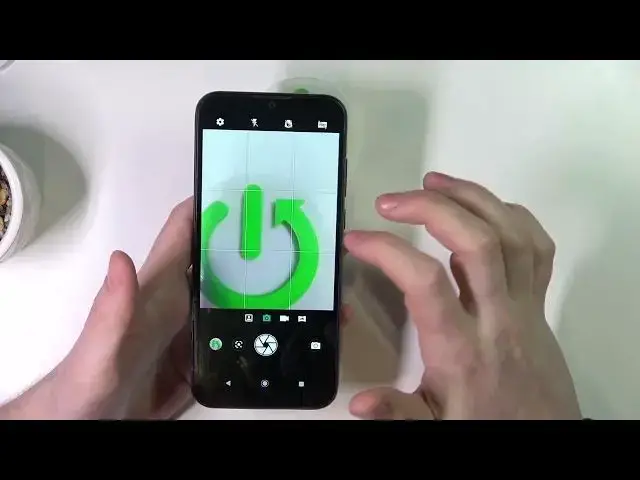
the camera for Motorola Moto E6s. So first let's launch our camera. Inside we have four modes available. There's a
0:22
portrait right here which is it's called something else but let's say it's a
0:28
portrait. Yeah but this mode is usually very good for taking selfies. There's a
0:38
normal capture mode, video mode or a panorama. So let's stick with a photo
0:46
mode now and here are some tips. I would go for the settings first. I would make
0:53
sure to use the best photo size which is 13 megapixels 4x3. It allows us
1:02
to make the best quality photos. There's a capture sound which we can disable so
1:08
now if we take a photo there'll be no sound. You can add the GPS location to
1:13
your photos but you need to allow the surface first. There's a grid which can
1:19
be visible when taking photos. It will help you stabilize the picture that you
1:24
want to make. There's also touch capture which you can make a photo by just
1:32
touching your screen. I think double time is yeah it takes a photo. There's a
1:38
volume key functions which are let's try them. I think yeah it makes a photo with
1:47
a volume key. It doesn't zoom or zoom out and that's a normal function. Zero shutter
1:53
delay and if you enable it it will take the photo without any shutter speed and
1:59
it will just instantly take the photo. I would actually disable it. I think it
2:04
will give you better results but you need to keep your phone very stable for
2:10
that. There's anti flicker which affects the videos so if you want to capture a
2:16
screen that shows 60 FPS of image per second I would go for 60 Hertz and that
2:25
way it won't flicker. It won't have this weird lines around the video. You can
2:31
restore all settings to defaults if you don't like them and yeah. Here you can
2:37
enable a flash for your camera. You can use the always flash and it doesn't work
2:44
Okay I think the flash on this phone doesn't work as it's being used heavily
2:48
as you can see. But you can use the always flash and it should flash. It
2:58
should enable flash always on your photo. There's also flash when you just press
3:04
on the shutter. Okay it works. I don't know why it doesn't on always flash
3:10
Here's a face filter I guess. It makes your photos, it detects the faces on your
3:19
photos and make them more pretty I guess. This is a bit junky feature on most of
3:27
the devices and I would go for the zero right here. You can enable or disable or
3:33
use an automatic HDR and in some cases I would disable HDR in some cases I would
3:40
enable it. So let's go with autofunction and that's basically all of the tips I
3:45
can give you for the camera on this device. And that's it for this video. Hope
3:49
you like it. Please consider subscribing to our channel, leave like and a comment below