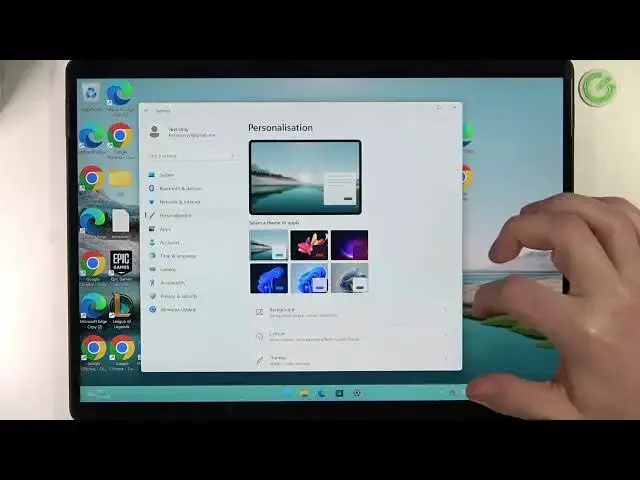

Microsoft Surface 8 Pro - How To Change Custom Wallpaper
Mar 26, 2024

Check more info about Microsoft Surface Pro 8 :
https://www.hardreset.info/devices/microsoft/microsoft-surface-pro-8/tutorials/
To change the custom wallpaper on the Microsoft Surface Pro 8, follow these steps:
Open the "Start" menu on your Surface Pro 8 and type "Personalization" in the search bar.
Click on the "Personalization" app to open the Personalization settings.
In the "Personalization" settings, go to the "Background" section and you will see the current wallpaper and other available options.
To change the wallpaper, click on the "Browse" button and select the image you want to use as the wallpaper. You can select an image from your local storage, from OneDrive, or from any other location.
The wallpaper is the background image used for the desktop and the lock screen on your Surface Pro 8. You can choose any image you like, such as a photo, a picture, or a graphic, to use as the wallpaper.
Once you have selected the image you want to use as the wallpaper, click on the "Open" button and the image will be set as the wallpaper on your Surface Pro 8.
You can also customize the settings and options of the wallpaper, such as the fit, the position, or the background color, using the controls in the "Background" section.
Keep in mind that the custom wallpaper on the Surface Pro 8 can be changed to use a different image as the background for the desktop and the lock screen. You can select an image from your local storage, from OneDrive, or from any other location, and set it as the wallpaper on your Surface Pro 8. You can also customize the settings and options of the wallpaper, to match your preferences and usage habits. You should consider the performance and battery life implications of using a custom wallpaper on your Surface Pro 8.
Show More Show Less