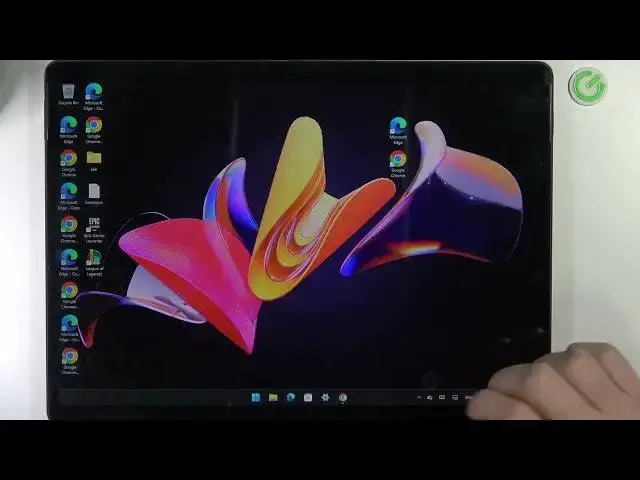

Microsoft Surface 8 Pro - How To Add & Hide Weather Widget
Mar 26, 2024

Check more info about Microsoft Surface Pro 8 :
https://www.hardreset.info/devices/microsoft/microsoft-surface-pro-8/tutorials/
To add and hide the weather widget on the Microsoft Surface Pro 8, follow these steps:
Open the "Start" menu on your Surface Pro 8 and type "Weather" in the search bar.
Click on the "Weather" app to open the Weather app.
In the Weather app, you will see the current weather and other information, such as the temperature, the forecast, or the humidity.
To add the weather widget, click on the "Add a city" button and select the city you want to add from the list. You can add multiple cities to the weather widget and switch between them using the controls in the app.
Once you have added the city to the weather widget, the widget will be displayed on the start menu, showing the current weather and other information for the selected city.
To hide the weather widget, right-click on the widget in the start menu and select "Unpin from Start" from the context menu. The widget will be removed from the start menu and will no longer be displayed on the screen.
Keep in mind that the weather widget on the Surface Pro 8 can be added and hidden to show the current weather and other information for the selected city. You can add the weather widget by clicking on the "Add a city" button in the Weather app, and select the city you want to add from the list. You can hide the weather widget by right-clicking on the widget in the start menu and selecting the "Unpin from Start" option from the context menu. You should consider the performance and battery life implications of using the weather widget on your Surface Pro 8.
How to check weather on MICROSOFT SURFACE PRO 8 ?
How to add always visible weather to MICROSOFT SURFACE PRO 8 ?
Show More Show Less