0:00
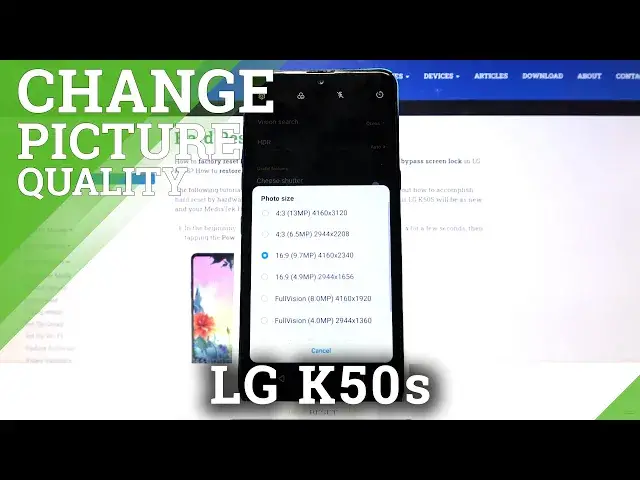
Welcome, here I've got LG K50s and I'm gonna show you how to change photo size in the camera
0:11
app at this device. So at first we have to tap on a camera button to open it and for now we are in the standard
0:18
photo mode. From here let's go to the left corner to this button, when we pick it we can open the
0:23
advanced camera settings. Now let's focus on these two buttons at the bottom
0:29
Let's start from this from the right, when we tap here we can manage the photo size
0:33
so the aspect ratio of the picture connected with the quality in megapixels and the size
0:40
And this is how it looks like, you can pick whatever you need. Now let me focus on aspect ratio because this is the difference we can see by our eyes in
0:47
the camera app. We are in 4 and 3, let's pick 16 and 9
0:53
And let's go back to the camera preview. Now the background has changed to the longer one and this is how it looks like
1:00
Another tap to the left corner and to this button from the right at the bottom and we
1:05
can pick the full vision aspect ratio. As you can see now the second button is in the yellow color, so this button gives us
1:14
the short and quick access to the full camera frame. And let's go back now to the camera preview and now we can see the full camera aspect ratio
1:25
Another tap to the left corner, we can turn it off by tapping on the full vision here
1:29
or just pick this button from the right. And now we are again in 16 and 9, let's slide down and pick the 1 and 1 ratio
1:38
And in the camera preview we can see that this is the square one
1:43
And of course by tapping on this button here in the left corner and tapping on this one
1:48
from the right at the bottom we can go back easily to the original 4 and 3
1:54
And in the preview to remind you it looks like that. And of course let's move again to the settings
2:00
I suggest you to keep this on the best possible quality, so 13 megapixels to 4 and 3 ratio
2:09
9 and 7 megapixels to 16 and 9 ratio, 8 megapixels to the full vision and 9 and 7 megapixels
2:16
to 1 and 1. And of course you can pick whatever you need here
2:21
And that's all. Thanks for watching, subscribe our channel and leave the thumbs up