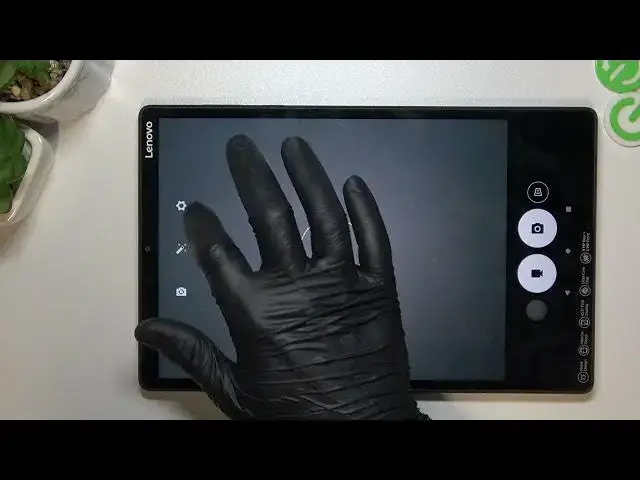

Lenovo Tab M10 Plus - How To Turn Off Camera Location Tag
Jul 25, 2024

Visit Our Website And Learn About LENOVO TAB M10+ :
https://www.hardreset.info/devices/lenovo/lenovo-tab-m10-plus/tutorials/
To turn off the camera location tag on a Lenovo Tab M10 Plus, you will need to disable the "Location" or "Geotagging" feature in the device's camera settings or in the app that you're using to take photos or videos. This feature allows your Lenovo Tab M10 Plus to automatically record and attach the location information, such as the latitude and longitude coordinates, to the photos and videos that you take.
To turn off the camera location tag on a Lenovo Tab M10 Plus:
Open the camera app on your Lenovo Tab M10 Plus.
Tap on the menu icon (three vertical dots) in the top-right corner of the screen.
Tap on "Settings" or "More" or a similar option.
Tap on "Location" or "Geotagging" or a similar option.
Toggle off the "Location" or "Geotagging" or a similar option to disable it.
This will turn off the camera location tag on your Lenovo Tab M10 Plus. Keep in mind that the exact steps and options may vary depending on the camera app that you're using and the device's software version and settings.
If you're having trouble turning off the camera location tag on your Lenovo Tab M10 Plus, you can try looking for a tutorial online or contacting the camera app's customer support for assistance.
Show More Show Less