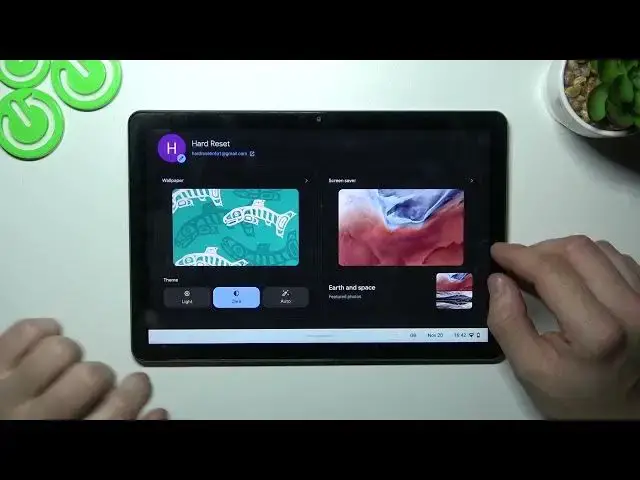

Lenovo IdeaPad Duet Chromebook - How To Find & Manage Display Settings
Jul 24, 2024

Visit Our Website For More Information : https://www.hardreset.info
To find and manage the display settings on a Lenovo Ideapad Duet Chromebook, you will need to follow these steps:
On your Chromebook, click on the "Quick Settings" menu in the bottom right corner of the screen. This will bring up a menu with several options.
From the Quick Settings menu, click on the "Settings" option. This will open the Settings menu for your Chromebook.
In the Settings menu, click on the "Display" option. This will open the display settings for your Chromebook.
In the display settings, you will see several options that you can use to manage the display on your Chromebook. These options may include:
Adjusting the screen brightness: You can use the slider under the "Brightness" heading to adjust the screen brightness on your Chromebook.
Changing the screen resolution: You can use the "Resolution" dropdown menu to change the screen resolution on your Chromebook.
Rotating the screen: You can use the "Orientation" dropdown menu to rotate the screen on your Chromebook.
Enabling or disabling the touch screen: You can use the "Touchscreen" toggle switch to enable or disable the touch screen on your Chromebook.
Once you have made the desired changes to your display settings, click on the "Done" button to save your changes and close the display settings menu.
I hope this information is helpful. If you have any other questions, feel free to ask.
Where are display settings on LENOVO IDEAPAD DUET CHROMEBOOK ?
How to change display settings for Lenovo IdeaPad Duet Chromebook ?
How to adjust screen settings for LENOVO IDEAPAD DUET CHROMEBOOK ?
Can i change display options for LENOVO IDEAPAD DUET CHROMEBOOK ?
#LENOVOIDEAPADDUETCHROMEBOOK #Change #DisplaySettings
Follow us on Instagram ► https://www.instagram.com/hardreset.info
Show More Show Less