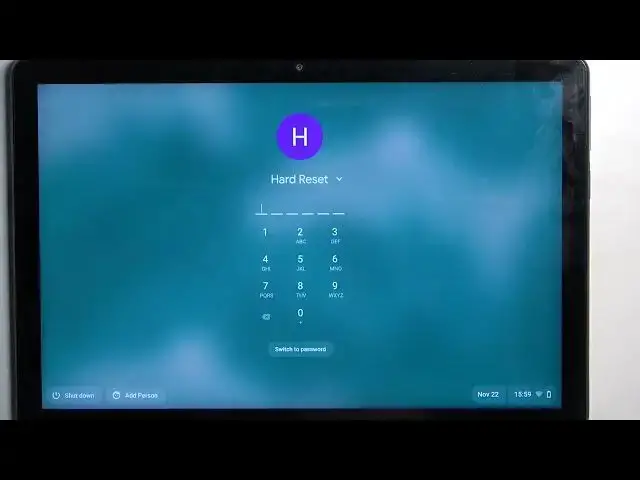

Lenovo IdeaPad Duet Chromebook - Hard Reset In Settings
Mar 26, 2024

Visit Our Website For More Information : https://www.hardreset.info
To perform a factory reset on a Lenovo Ideapad Duet Chromebook, you will need to follow these steps:
On your Chromebook, click on the "Quick Settings" menu in the bottom right corner of the screen. This will bring up a menu with several options.
From the Quick Settings menu, click on the "Settings" option. This will open the Settings menu for your Chromebook.
In the Settings menu, click on the "Advanced" option, which is located near the bottom of the menu. This will open the advanced settings for your Chromebook.
In the advanced settings, scroll down to the bottom of the page and click on the "Reset settings" option. This will open a new window where you can reset your Chromebook's settings to their factory defaults.
In the reset settings window, click on the "Reset settings" button. This will start the process of resetting your Chromebook to its factory settings.
When the process is complete, your Chromebook will restart and you will be prompted to set up your device as if it was new. Follow the on-screen instructions to complete the setup process and configure your Chromebook.
I hope this information is helpful. If you have any other questions, feel free to ask.
Hard reset on LENOVO IDEAPAD DUET CHROMEBOOK ?
Factory reset on LENOVO IDEAPAD DUET CHROMEBOOK ?
How to restore factory settings on LENOVO IDEAPAD DUET CHROMEBOOK ?
How to bring back default settings on Lenovo IdeaPad Duet Chromebook ?
#LENOVOIDEAPADDUETCHROMEBOOK #Hardreset #Factoryreset
Follow us on Instagram ► https://www.instagram.com/hardreset.info
Like us on Facebook ► https://www.facebook.com/hardresetinfo/
Tweet us on Twitter ► https://twitter.com/HardResetI
Support us on TikTok ► https://www.tiktok.com/@hardreset.info
Show More Show Less