Up next in 10


Embark on a journey with us as we dive into the world of maps on Mac OS Sonoma! In this step-by-step tutorial, we'll show you how to make the most of the Maps app. From getting directions and exploring locations to discovering hidden gems with Flyover tours, we'll walk you through all the features of Maps on the latest Mac OS. Learn how to plan your routes, find nearby businesses, and explore 3D cities like never before. Don't miss this opportunity to become a Maps pro on Mac OS Sonoma – watch our video and start navigating like a pro!
"Mac OS Sonoma Maps app tutorial"
"Get directions on Mac Sonoma with Maps app"
"Explore locations on Mac OS Sonoma Maps"
Find out more: https://www.hardreset.info
#macos #apple #macossonoma
Follow us on Instagram ► https://www.instagram.com/hardreset.info
Like us on Facebook ► https://www.facebook.com/hardresetinfo/
Tweet us on Twitter ► https://twitter.com/HardResetI
Support us on TikTok ► https://www.tiktok.com/@hardreset.info
Use Reset Guides for many popular Apps ► https://www.hardreset.info/apps/apps/
Show More Show Less View Video Transcript
0:00
Hi, welcome to Hardware's Info Channel, dear viewers
0:03
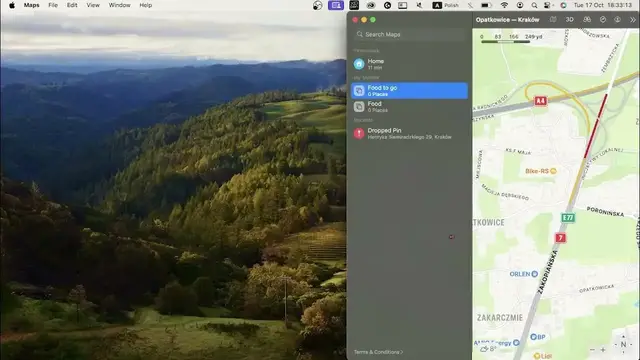
In front of me Mac OS Xonon device and I gonna show you how to use Maps application on this OS
0:14
To use Maps, firstly, you need to open it for the first time
0:19
And if you don't see your location point on your Mac OS, so firstly you need to open the system settings
0:36
And in system settings you need to scroll down and find here Privacy and Security
0:44
Click Location Services and here you will see Maps. And you need to allow location access to the Maps application
0:57
Cool. Then reload the Maps application and here you will see your location with the blue circle
1:07
Great. So, the next you can do is to add your favorite addresses
1:16
So, for example, here you have work address and here you have home address
1:21
But you need to click on it for the first time and it will ask you to add address by adding the address to your contact card
1:36
But I suggest to do it in the other way. You can remove work address and home address, university address and in favorites here
1:48
Just click Add Favorite. Click, for example, click Home
2:00
Avanti Home. Oh, Zara Home will be my home, for example. And as you can see here is Zara Home
2:12
You need to click Add Favorite here. Just change the name of the favorite
2:19
For example, it will be my home, Pavia 5, it's a shopping mall in Krakow
2:26
And it will be my home, for example. And in this way you will add it to your contact card
2:35
And in this way it will work normally. Click Update. Cool, cool
2:42
And great, now we have home. So, if you can't add your home address normally from contacts, it freezing, don't work normally, you can do it in this way
2:59
And in this way you can add your home address, work address and other
3:05
Here we have guides. Using guides, for example, new guide, change key photo, ok, ok, it will be my guide
3:16
And I want to add places here. So, what's a guide is, for example, guide food
3:25
And here you will add your favorite restaurants, favorite cafes and other places where you have eaten great food
3:39
And, for example, you can add the folder food to go
3:49
So, to add here places you want to see, for example, if you will travel to Paris, you can find the best restaurants in Paris, for example, or best cafes in Paris
4:08
And just add to this list your restaurants you want to go
4:14
And here you will see the list you want to go. And, let's see, this is the most used features on the Apple Maps
4:25
And what we have here. Here we have in the file share location, print the map
4:33
So, we don't use these features in normal life. Speech, spelling, emoji, symbols
4:39
No, no, no, no, and that's it. Only here in Maps settings we can change different settings
4:49
For example, we can always use large labels. We can always use light map appearance
4:57
For example, I hate dark appearance of map. I don't know why, but I really hate
5:03
I can't use it normally. It's enormous for my eyes. Always show compass
5:10
For example, here you can see you have compass and we can turn off it or turn it on
5:15
Always show zoom controls. Zoom controls is here. Show air quality index
5:22
You can enable this feature, but it works great not in each country
5:29
Road planner. So, this is very, very, very interesting feature. Because driving or road planner you can change preferences for the transport type
5:48
For example, if you want to use it to walk, but maybe not to walk on the Mac OS device
5:57
So, you can enable walking mode on your iPhone, but not on the Mac OS
6:02
For example, you want to create the road using the public transport
6:10
So, click public transport. Here you'll see driving default options. And so, here we have avoid tools
6:21
You can enable it or disable it. Avoid motorways. You can disable or enable this feature
6:28
Walking default options. So, avoid hills or avoid busy roads. So, it's very good feature
6:39
Avoid stairs if you have a problem to walk through the stairs
6:47
So, you can enable this feature. Cycling default options. So, avoid hills. It's a very good idea, but not always
6:58
You need to understand it. So, if you enable it, it will create roads, avoid hills
7:07
So, sometimes the one way to road is through the hills
7:18
So, sometimes you just need to open settings and disable this feature
7:22
And cool. So, rating photos. So, here you can allow photo providers or disable it
7:34
Rating photos. And maybe that's it. So, this was the most important feature in the settings
7:43
Here in the maps we can change the view. For example, here we can change the view to satellite type
7:51
To the driving type, which is busy roads. For example, in the Krakow right now, as you can see, here we have busy roads here
8:05
And it lights red, orange, and grey if the road is not busy
8:15
And here we have normal explore. So, it's just normal. And public transport too
8:23
So, using public transport too, you can see, for example, in the Krakow
8:30
And as you can see, public transport is very, very, very great builded
8:34
And using Krakow public transport we can... So, blue lines is the trains
8:45
Red lines are the public buses. And using public buses, for example, as you can see, we can go to different places
8:56
And cool. Also, we can enable the 3D mode, but not on every countries and every cities we can use it
9:05
For example, in Poland we can't use this feature. But, for example, if we will open the New York or Washington, we can use the 3D view here
9:19
For example, as you can see, here we have the Atlantic Terminal
9:27
And we can enable the satellite mode. And we can enable the 3D view
9:37
As you can see, it doesn't work even in New York. Oh, it's really strange
9:44
No, it works. As you can see, here we have the 3D view
9:48
And it works perfect. Perfect works. So cool. Here we have the feature that helps us to use the street view
10:06
For example, we can move it to different places. As you can see, with the street view we can use it even using the arrows
10:20
And it works great. It works really great. So street view is a really good feature
10:31
Maybe it works not too good like Google Street View. But it's just only because Google has the newest features
10:44
But Apple Maps has the oldest images. Cool. Here we have the road feature
11:00
So here you can just choose the type of transport. You can drive, you can use public transport, you can ride a bike
11:11
You can walk to the destination point. From, and to, for example, from my location to..
11:20
And when you want to go. Here we have the option button
11:24
You can avoid hills or busy roads. So as you can see, we have set up on the first part of the video
11:33
the default settings for the bike and for the walking. But here in options we can change it fastly without opening the settings
11:44
And here we have plus button, so we can add places to the favorites
11:51
For example, click on the place you want to add to favorites
11:57
For example, Mallet Playground. And if you want to add it to the favorites, you can click on this button
12:07
And click add to favorites. Or save to guide and choose on which guide you want to save it
12:18
You can create a contact even using this feature. You can open the website if this place has a website
12:31
And that's cool. So you can share places too. For example, here as you can see we have the share button
12:43
And we can share the place we see on our map. So all these places, all this area, we can share all this area by using this button
12:55
But if you want to share the concrete place, you need to click on it
13:05
Click on the three dots button and click share. And in this way you'll share only this pin button, so this place
13:15
That's cool. That's it. This is the way to use Apple Maps
13:22
It's really great application. Maybe it works not too good in European cities
13:29
But it works not bad in big European cities like Berlin, Munich or something about it
13:41
Like Paris for example. So that's it. Thanks for watching. Like this video, subscribe to our channel
13:50
And bye. See you
Computers & Electronics
GPS & Navigation
Maps
Science