0:00
Good morning, guys, in front of me's iPhone, and let me show you how to use Freeform app
0:09
So, as you can see, since the latest update, we've got Freeform, which is a digital whiteboarding
0:15
application developed by Apple. And if you wish to cooperate or just create a great dashboard
0:21
just open your freeform at first. Once you update your phone, it will be installed automatically
0:27
but obviously you can also find it in your upstore. So once you open a free form, you will be able to create new board
0:35
We'll be able to see your previous boards, recent, shared favorites and so on
0:40
So let's start with a new one. Tap on a new board. As you can see, you can zoom it in and out however you like
0:46
As this is the shared document, you can, for example, note something over here
0:53
then your colleague would be able to do it in any other book
0:57
place. So if you wish to add some shapes, just open shapes. And as you can see here, you've got
1:02
plenty of categories, obviously some basic options. Then you've got geometry, objects, animals
1:09
nature, food, symbols, education, arts, science, people, places, activities, transportation, work, and ornaments even. You can smoothly use it. So, for example, if it's about
1:27
some, let's say, actively, smoothly pick the one that you wish to apply
1:37
You can change the size however you like then you can change the color if you wish Over here
1:47
Here, you can, as you can see, duplicate it. But let me remove this second option here
1:56
And now if you want to add any other object, do it the same way
2:01
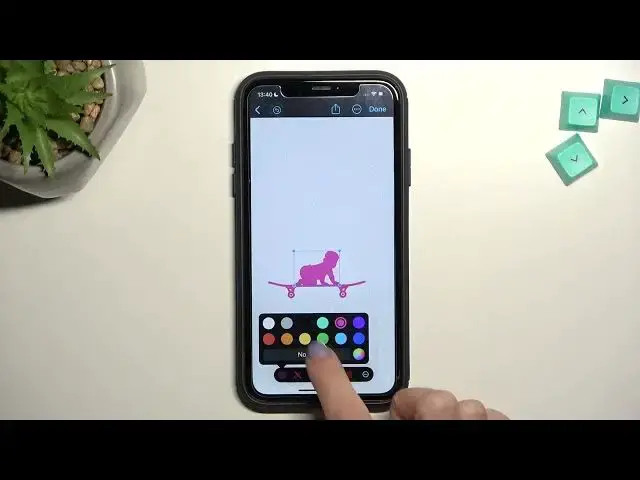
Let me put some person here. maybe the baby
2:10
So let's put this baby on the board and then you can also change the color if you wish
2:21
Then if you wish to add some text, tap on a icon and here you will be able to smooth you do it
2:27
You can resize it however you like. Double tap to enter the text and now let's do it
2:33
Let me enter, for example, plan. plans for tomorrow. Then you can place it wherever you want. So let me put it, for example, over here
2:48
Now, if you want to paint something or if you want to write something with your hands
2:54
click on this pen icon where you can find several pens. So here you've got the thin one
2:59
then even a bit thinner, then a blurred one, let's say, so you can make some shape, and then it will be fulfilled with color
3:15
As you can see, you can do it however you like. Let me just go back with it And here you can also erase it and the last one is for actually i not sure what is that
3:28
let me check it okay so we can create some shape and then cut it so this is how you can mark some
3:36
particular area and then you can copy delete or duplicate separate and so on let me duplicate it so
3:43
we can place it here and then if you wish to write
3:47
something let me pick for example this one and let's say it's a planner for
3:53
um 2023 we can do it this way and then use this interesting one with this
4:07
fulfilling the area so here we can write plans or simply plan
4:17
and then for example this one or that one. So this is how you can use all the features here
4:40
Then tap on done, obviously you can also add some pictures if you wish
4:46
Let me check if I have some photos that we can add here
4:51
Okay, let's add Cameron Diaz here. Tap on add and now you can place this particular picture wherever you want
5:00
Let me just zoom this dog abir and we can place it here So if you want to make some shared document and if you are doing it with your friends
5:10
as you can see, there is plenty of places. It is limitless and you can zoom it in and out however you like
5:15
If you want to share it, just use share icon and then you can even send it via message
5:20
Gmail, mail, Discord, whatever. If you'll tap on more icon, you will be able to rename your dashboard
5:29
Then you will also be able to duplicate it, add it to favorites
5:34
Find something in this document. You can hide grid if you wish. So now it looks even better
5:46
Let's take a look at the text. So as you can see, we don't have grids from now on
5:52
You can also export it as PDF or even print it. Then smoothly, go back
5:57
Here you've got all your boards. If you want to add something to favorites, you can also do it from this panel, smoothly hold it and tap on a favorite
6:07
Also, here you can rename it, duplicate, share and so on. Also bleed, obviously
6:13
And that's it. Then you can go back. You can create another one
6:17
You can go to recently deleted and either remove it, like fully or recover the document
6:26
So, that's it. And this is how you can use your free form, enjoy
6:31
Thank you for watching. Please subscribe our channel and leave the thumbs up