Up next in 10


How to update SAMSUNG Galaxy S7? How to upgrade Android in SAMSUNG Galaxy S7? How to flash stock in SAMSUNG Galaxy S7 Edge? How to manually update SAMSUNG Galaxy S7 Edge? How to flash SAMSUNG Galaxy S7 Edge?
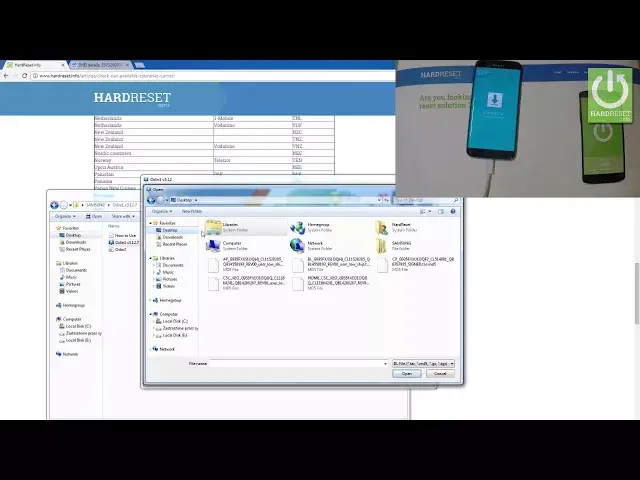
Watch the video tutorial in order to update SAMSUNG Galaxy S7 Edge to the newest firmware. First of all you need to download appropriate software and the install it on your device. We present for you whole tutorial step by step.
More Info:
http://www.hardreset.info/devices/samsung/samsung-g935f-galaxy-s7-edge/faq/firmware-flash/
Show More Show Less View Video Transcript
0:00
Here I have Samsung Galaxy S7 Edge and let me show you how to update the latest
0:10
firmware on this device. As you can see, let me use the tutorial from hardpresset.in
0:16
At first, you have to download and install necessary tools. There's some firmware, this is the application which finds you the appropriate software
0:24
You have to also download and install the audio application and necessary components
0:29
As you can see I've got installed and downloaded everything This is the folder with my Sunfilmer and Odin
0:38
At first you have to open the SAMFirmware so let's use the Samfirmardasset. info application
0:44
Let's use the right click on your mouse and let me run as an administrator
0:52
afterwards you have to use the following application and you have to type in the exact
0:59
model of your device. If you are not sure about this, let's check your model by using the email.Info and by using the email from your device
1:11
So let's use the secret code. Let me open the phone dialer and use star hash 06 cache
1:19
As you can see right here, the email number just pops up
1:23
So then let's type in this email. This is the following email
1:28
Let me also go through the CAPTCHA protection, let me tap check
1:35
And as you can see right here, you can find the exact model of your device
1:41
So let me copy that one and let me paste it into some firmware right here
1:47
Afterwards you have to also find the appropriate code for your region
1:52
You can use our tab. It is located right here. The country carrier Samsung
1:57
Let me tap it. As you can see here you put available countries, carriers and codes
2:04
So in my case, let me find the Poland right here. You can use some firmware from one of the following careers or you can use the non-carrier filmware right here
2:18
So let me use the following code XEO and copy that code and paste it into the region
2:25
Afterward you can also select the auto, the binary nature and make sure that you have to select that two options
2:33
Check CRC 3-2 and decrypt automatically. Afterwards let's choose check update and the firmware is logging for available software
2:44
As you can see the latest firmware is found. So afterwards all you do is choose the download button so let me click on download
2:55
Let's find the appropriate place for that file. In my case it would be a download and let me tap save
3:05
Now you have to wait until the standard firmware download completely and decreed the firmware
3:11
So let's wait a couple of seconds. I'm
3:55
I'm So
4:55
So, So
5:55
Thank you Okay I'm
6:47
So, So
7:47
As you can see download is finished but now the sun filmer is decrypting the filmer so you have to wait a couple of seconds
8:17
So, So
9:17
As you can see the encryption is finished, so now you have to find out of the film
9:45
you have to find your firmware so in my case it is located in the download folder right here
9:51
so let me unpack this file let me extract files right here for example let me choose the location
10:03
as a desktop and let's stop okay you have to wait for a while
10:15
It's So
11:15
So now let me go out to my desktop and let me show that I got all necessary files as you can see I got everything So afterwards let me open the Odin application
11:50
So this is the Odin folder. And let me open the Odin app right here
11:58
Afterwards you have to open the download mode on your device. So let's press Power key for a few seconds
12:07
Let's choose Power Off and tap Power Up again just to confirm the whole operation
12:12
Wait and Clear device will be completely switched off and afterwards Let's use the following combination of keys, power key, home button and volume down
12:22
Let's hold down together these three keys for a couple of seconds. Release all keys as soon as warning message pops up
12:32
Then let's press volume up in order to continue. And as you can see the download move just box up
12:38
So now it's time when you should use the appropriate cable, the micro USB
12:49
So this is the cable connected to my PC and let me connect this cable by using the necessary slot. Excellent
12:59
As you can see the IDcon is highlighted and here in the log you've got to
13:05
the information that the device is added. So now it's time when you should load the necessary files. So let's start by using BL file
13:14
So as you can see I've got this file on my desktop. This is the appropriate file. It's starting from BL. So let's stop it. Let's choose open
13:26
Now let's use the AP. So
14:05
You have to wait for a while. The information from my windows to be closed this information
15:05
So, Excellent
15:53
As you can see AP file is loaded. Now it's time for a CP file
16:00
So let's find CP. Let's choose open. And the last one, CSC
16:08
This is that CSC file. You can also use the Home CSC if you would like to not lose your data, more information you can find on our website
16:18
So in my case, let me just use CSC and choose open
16:23
Before you start, you can check options and make sure that you have to select the auto-re-re-re-re-set time
16:31
In my case, everything is correct. So let me just taplevel. just tap start right here the device is initializing process the application is loading the new
16:42
firmware so we have to wait until the whole operation will be completed successfully
17:04
I'm going to be I I
18:01
I'm going to be I'm going to I'm going to I'm going to
18:37
Next, as you can see the update is completed
18:49
Now the device is setting up the webbed is completed
19:03
the device is setting up the welcome panel so you can disconnect your device on your PC
19:12
and wait until the Samsung welcome panel pops up on screen so the first startup
19:21
may take a little bit longer than usual one So
20:03
I'm going to be I'm Thank you. The
21:10
So, The So, I'm going to be. I'm
22:15
So, I guess, I'm going to be able to be able to be a lot of the people
22:20
the other than I'm going to be, and I'm going to go to the other
22:38
Excellent, as you can see the Samsung well component just pops up, so it means that the update accomplished successfully
23:06
You also have also hard to reset your device and now you can use the new firmware or Samsung Galaxy and S7H
23:13
So everything went well, thank you for watching. Please subscribe our channel and leave thumbs up under the video
#Operating Systems
#Other