0:00
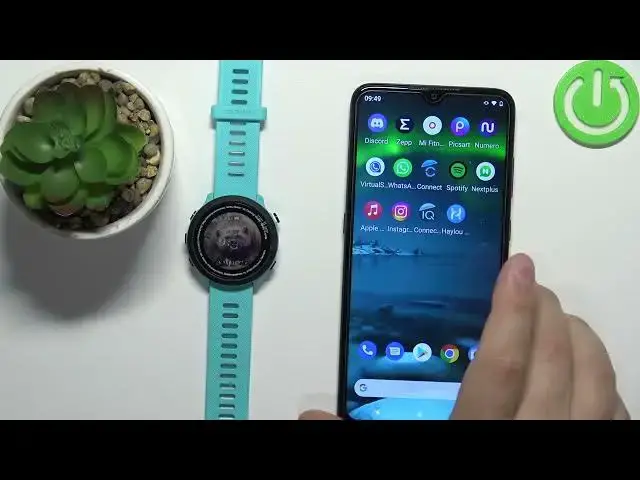
Welcome! In front of me I have Garmin Forerunner 55 and I'm gonna show you how
0:05
to uninstall the applications on this watch. First we need to open the menu. To open the menu press and hold the menu button
0:17
Once the menu opens you can use the up or down buttons to scroll through the
0:22
menu. Find the option called activities and apps, select it and press the start
0:28
slash stop button. Here scroll through the list by pressing the up and down
0:32
buttons. Find the application you want to uninstall, select it, for example this
0:38
one, then press the start slash stop button. And on this list, or rather in
0:44
this menu, scroll down, select the option called delete, press the start slash stop
0:49
scroll down, select the continue, then press the start slash stop. And once you
0:56
press the back button the application might be still here because the list is
1:00
not refreshed. But if you go back, open the activities, apps and apps again
1:05
scroll down, the application will be gone. Okay, so that's how you remove the
1:11
applications directly on the watch. If your watch is paired with a phone you
1:15
can also remove the applications via the phone application. So we can bring our
1:20
phone right here. And on the phone we can use two applications, or rather, yes, two
1:27
applications to uninstall applications from the watch. We can use the Garmin
1:32
Connect or Garmin IQ Store. I'm gonna open the Garmin IQ Store first
1:44
Once the application opens you can tap on my device right here. This should load
1:49
the page for your Garmin Forerunner 55. And on this page you should see the my
1:56
device apps category. Tap on it and here we have the list of installed apps and
2:01
not installed apps. Tap on the app you want to uninstall, tap on the uninstall
2:08
button and the app should be uninstalled like this. And if you want to use the
2:14
Garmin Connect application, tap on the Garmin Connect to open it. Tap on the
2:19
menu, scroll down, select Garmin devices, select your Forerunner 55, tap on the
2:28
activities and applications, tap on activities and applications. On this
2:37
page find the application you want to uninstall, tap on it, tap on uninstall, tap
2:44
on yes and the application will be uninstalled from your watch. And once
2:51
you're done you can close the Garmin Connect application. And that's how you
2:56
uninstall applications on this watch. Thank you for watching. If you found this
3:01
video helpful, please consider subscribing to our channel and leaving a like on the video