0:00
Hi guys, and this is a new tutorial about the tic-tac application
0:04
Today we will show you how to activate the inverted filter on tic-tac
0:13
So to start let's go to the tic-tac app and A lot of users want to turn on the special effect which can help you to mirror and also to flip
0:25
The selected tic-tac from side to side so right now we will show you how
0:31
How does this filter look like on tic-tac and how to find this special filter on your application
0:39
So right now we are on our profile page, and we have this filter saved
0:45
So right now I will go to the saved option on my phone, and we are on this effects section
0:52
So right now I will show you which icon this filter has as you can see we have the arrows
1:00
Two arrows on this shortcut so right now You know how does this filter look like and you can smoothly find it on the list
1:08
And don't forget that this is the tic-tac default filter So you for sure will have it on your application and right now
1:18
We will show you how to choose how to use this effect and
1:23
To activate it. Let's tap on the icon over side And let's
1:30
So before a new video recording I need to disable the edit sound because I don't like it as an example
1:38
So let's pick on the cross at the top of the screen and later. Let's tap on the red central button as usual
1:46
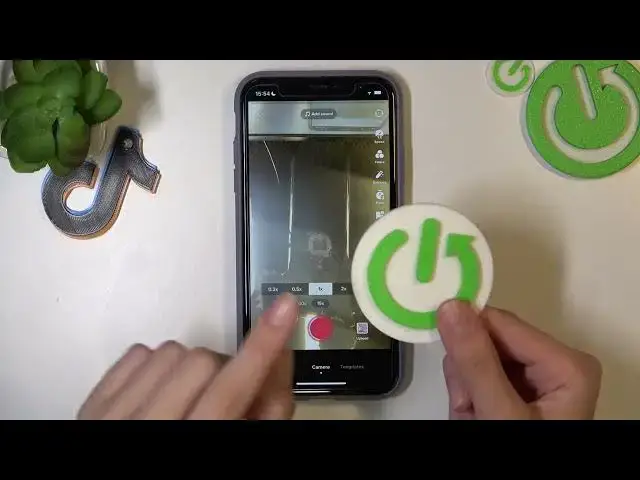
Also, I will use this like this logo hard reset info logo to show you
1:53
How does this? Effect work, so let's get started after tapping on the red central button
2:02
Yes, and later. I need to tap on the screen to rotate to mirror my
2:10
my video So later as you can see I paused my tic-tac
2:15
But I want to I can tap on the red central button again to continue recording
2:23
And don't forget to pick on the check mark to save changes And as you can see we have this video from this side and later we can just change the
2:34
Orientation of my tic-tac you can smoothly use this option a lot of times
2:42
Just by clicking on the screen again and again, let's check it again. So I need to tap on the red central button
2:50
right now I have Changed the orientation of my tic-tac and I did it again
2:57
So right now I hope that you know how to use this inverted filter on your tic-tac app
3:03
So don't forget that to save this created tic-tac. Let's tap on the check mark
3:09
Later you need to pick on the next option and to draft or post I will click on the first
3:16
button and guys Yes, it was very very short tutorial, but I hope that it was helpful
3:25
So don't forget to subscribe to our channel where we show you even more cool phone tricks
3:31
And also talk about the tic-tac filters and other cool options. So goodbye