0:00
Welcome! In front of me is a Redmi Note 10 Pro and today I'll show you how to
0:13
transfer files from your phone storage to an SD card or vice versa. And to get
0:19
started you will want to open up the file manager application. Let's agree and
0:23
continue and allow access to storage and once you're in the application you want
0:28
to select this little folder icon and as you can see by default we should be in
0:34
the internal storage which is the storage of the device itself. And in here
0:38
we have a couple folders that are worth mentioning. So we have the DCIM folder
0:44
which will contain pictures and videos along with screenshots and screen recordings. Then if we go back we also have the downloads folder which will
0:53
contain anything that I have downloaded using the device. That'd be through a web browser, emails, stuff like that. Anything saved and downloaded will go to this
1:00
folder. And then rest of the folders are basically just trash and most of the
1:06
time are empty assuming you haven't downloaded some kind of application from Play Store that will directly save to a dedicated folder but that will vary
1:15
depending on what kind of apps you download. So once you find your files
1:20
which for me I'm just gonna be moving some kind of screenshots right here. As
1:24
you can see if you have the file itself they have this little circle beside it
1:28
So if you want to move the files themselves all you need to do is tap on the
1:32
circle this will select them and you can tap on additional ones to select more
1:36
And if you have an entire folder full of photos you could either select one and
1:42
then tap on the check mark right here to select basically every other file in
1:46
that directory. So in this case in the screenshots folder or you could go back
1:50
and just select the entire screenshots folder. So as you can see in this case we
1:55
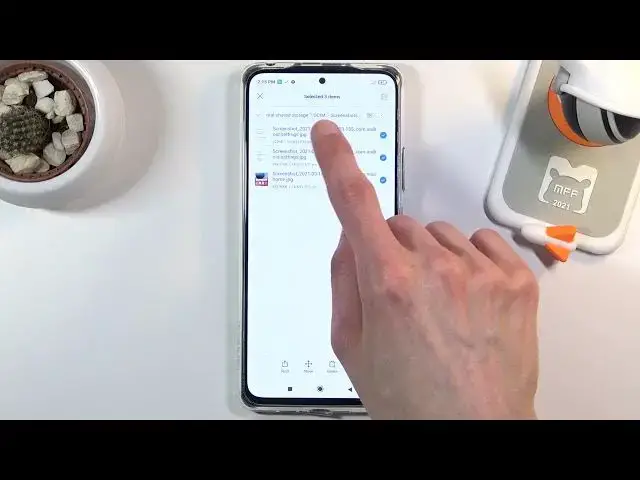
don't really have that circle so if you want to select it you do it by simply holding the file like so. And once you have it selected all you need to do is
2:05
choose to either move it or copy it. Now move option is visible right here but
2:09
copy is under more. So if you go with the copy route it will create duplicates so
2:17
you'll keep the original files where they are right now and then the
2:21
duplicated files will be moved to your desired location. While move option will
2:25
just completely move them from where they are right now to the desired location. Now I'm gonna go to move option right here and once you select one of
2:33
the two options it will show you this page right here so select folder or more
2:37
precisely select directory. So we have the font storage and the SD card. Choose
2:42
where you want to move your files. So I'm gonna go with the SD card and SD
2:48
card has basically the same folders in here. As you can see we also have DCIM
2:53
but this DCIM folder is completely empty so let's change this and paste
2:58
our files right into here. And there we go we are still on the SD card DCIM
3:03
folder and we have just pasted and the screenshots folder with all of its
3:07
content inside. And that is how you remove any kind of file from one
3:12
location to another. And if you found this video helpful don't forget to hit
3:15
like, subscribe and thanks for watching