0:00
Welcome guys, in this tutorial I want to show you how quickly you can test your microphone on the Windows 11
0:11
Ok, so first we have to simply go for the start and we have to click with the right mouse button and open the settings
0:20
Right now when you are here we have to open the sound
0:25
And then we have to scroll down a little bit. As you can see right here we have all inputs and devices
0:34
So I am currently using this microphone. So if I want to test this microphone I have to go for the right side in this place, click on this arrow and after that we will be in this properties
0:45
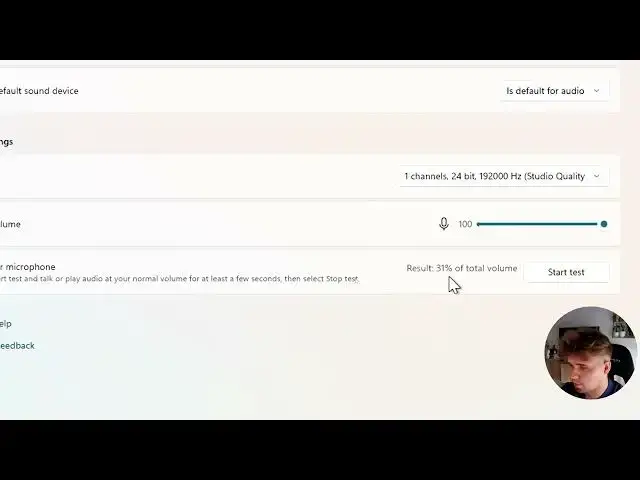
So as you can see that's the test microphone and we have to select the start to perform the test
0:52
So let's try it right now. 1, 2, 3, 4, 5. As you can see in this place when I talk right now that's another line that comes over this thin line and it means that the microphone is detected and it's working
1:08
When I stop talking, as you can see there's no any line comes on this one
1:14
Ok, so we can just press on the stop test. As you can see there we got the result
1:20
That's 31% of total volume. And yeah, right here we can perform the test of your microphone
1:28
Of course you can switch between the devices right here with this
1:32
Ok, right now you probably didn't hear me because... Yeah. Ok, right now you can hear me
1:40
I just forgot that I am recording video right now so I am not supposed to change it while recording
1:46
But also we can make test right here as you can see that's the same animation when you talk that line comes over the thin line
1:55
So yeah, that's all for this video. And if you find it helpful just remember to like, comment and of course subscribe to our channel