0:00
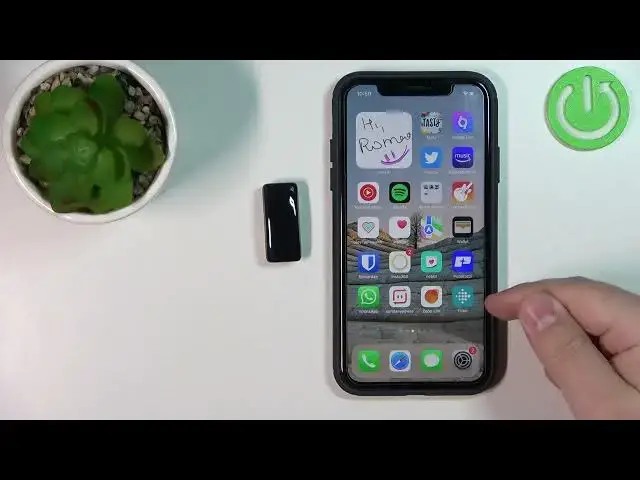
Welcome! In front of me I have Fitbit Ace 3 and I'm gonna show you how to enable
0:11
the phone notifications for this smartband on the iPhone. Before we start
0:17
your smartband needs to be paired with a phone or with an iPhone via the Fitbit
0:22
application. Once the devices are paired we can continue and we need to make
0:29
sure that the required permissions are allowed for the notifications to work. So
0:34
we need to open the settings on our iPhone. In settings we need to scroll
0:39
down to the bottom and right here on the bottom or at the bottom you have the
0:45
list of apps installed on your iPhone. Find the Fitbit application on this list
0:50
and tap on it. Here make sure that the Bluetooth is enabled for the application
0:56
the Bluetooth option. Also tap on notifications and make sure that the
1:01
allow notifications is enabled. Once it's enabled you can go back to the
1:05
settings scroll all the way up and tap on Bluetooth. Here find the Ace 3 on the
1:13
list. You have it. Tap on the info icon next to it like this and make sure that
1:19
the share system notifications is enabled. If it is you can go back close
1:24
the settings but if it's not enable it and then close the settings. Okay so once
1:29
we enable the required permissions we can open the Fitbit application on our
1:34
iPhone. In the app you should see the home page, the today page. You can tap on
1:42
the profile icon to open the account page and here you should see the Ace 3
1:47
on the list of devices connected to your phone. If you don't see it you could be
1:51
on the parent view in the application. So if you don't see this button right
1:56
here, switch to the parent view. You will need to switch to kid view. I'm gonna
2:00
switch to parent view quickly so I can demonstrate how to do it. So let's enter
2:05
the password. Okay tap confirm. Wait until it switches to the parent view and in
2:16
the parent view when you open the account page you won't see the Ace 3 on
2:20
the list because you can only use it with the kids view for some reason but
2:26
it is how it works. And to enter the kids view you will need to tap on my family
2:31
You should have the family set up already if you pair the devices together
2:35
Now find the child and tap on the switch to kid view. And in the kid
2:43
view you can tap on profile, tap on Ace 3 to open the device page for it and here
2:50
you should see the notifications option. Tap on it. Make sure that the calls is
2:57
enabled and now you should be able to receive the notifications about calls on
3:03
your Fitbit Ace 3. On the Android it allows you to test the notifications. For
3:12
some reason it doesn't allow it right here so I can't show it to you but now
3:16
you should be able to receive the notifications. So if somebody calls you on
3:20
your iPhone you should, your band should basically vibrate when it's somebody's
3:25
calling you. And you should see the information about the person calling you
3:30
displayed on the band also. Okay and that's how you enable the phone
3:35
notifications for this smart band on the iPhone. Thank you for watching. If you
3:41
found this video helpful please consider subscribing to our Channel and leaving