0:00
Hi, welcome to Hardware's DINFO channel, dear viewers
0:03
In front of me is the VEIK A50 and now I'm going to show you
0:07
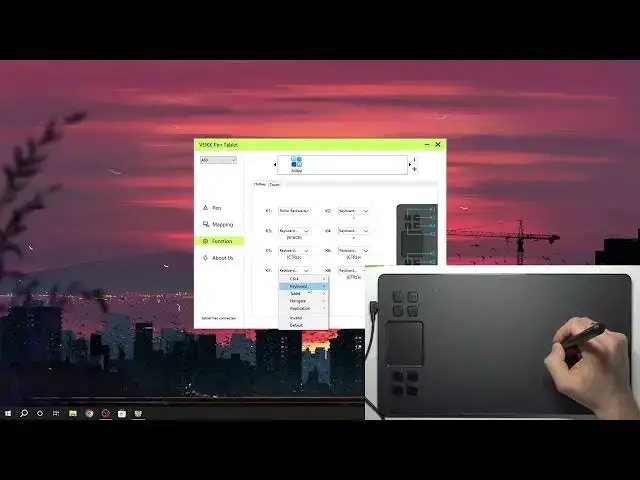
how to make a really great thing, how to change the shortcuts function
0:16
So as you can see here we have the shortcuts and we can set these shortcuts up
0:22
To do it we need to open the VEIK application, so choose VEIK tablet
0:28
and here you will see the function. So open the function. Here you can set up shortcuts for desired apps. For example, you can create a shortcut setup for
0:42
the Adobe Premiere Pro, for example, or for, I don't know, for Illustrator, for other drawing
0:50
applications. And for example, here I have the key one, so here as you can see it's key one
1:02
key two, three, four, five, six, seven, and eight. So here we have it. And just change it
1:13
for example, key one, what I want to have in key one. I want to have, for example
1:18
roller backward. Great, it works. Roller backward. Key three, I want to open application
1:32
I don't know why it doesn't work
1:44
Maybe I need to browse. So you can, you need to find the application you want to open
1:52
but we want to use it like a shortcut, not like an application opening. For example, I don't know
2:00
I don't know. I want keyboard and I want to use, for example, control D
2:18
How can I clear? Okay, click clear and then control D
2:30
Maybe I have the troubles with my keyboard. Control, oh, okay, here we need to use this button to choose the
2:42
special keys. So here choose the control and here click D. For example, click confirm
2:50
and it was the key seven. And now when I'm clicking on the key seven
2:57
the control D is working now. Okay, so let's check it with our application, not with the driver
3:04
Control D isn't working, I don't know why. So let's check it with the other keys. For example
3:14
I want to use it with Windows D, oh no. Okay, L, win, and D. Confirm, let's check it. I'm clicking
3:28
great, it works. So great, it works. So cool. We can change the buttons function in this way
3:38
And of course, here, as you can see, we have the touch. And in this way, we can set up touches too
3:46
So for example, touch right. In touch right, we can set up the application. For example
3:54
open run, navigate, invalid, default, tablet, pen, erase, for example, switch, keyboard, undo, redo. So you can set it up in the way you want and use it in the same way
4:10
So you can set up everything here. So Wake Pen Tablet application is really, really, really great
4:16
So thanks for watching, like this video, subscribe to our channel and bye, see you