0:00
Welcome. Enfronomy is a realme 10 Pro Plus and today I'll show you how you can go through the
0:05
setup of your phone. So when you boot it up for the very first time you should be presented with
0:13
the screen like this one, where you get to select your desired language. Now for me it already
0:18
selected a correct one, English, so I'm just going to select Next. Then we get to select our region
0:23
and continuing on we have some legal information. Now a very scammy way to go about it here from
0:31
realme they did select the optional but not the non-optional ones. So in hopes that you
0:37
want to be lazy and not deselect those. I would recommend deselecting them because F you realme
0:46
it's not a way to do it. You either deselect all of them or select all of them. You just pick one
0:52
From there once you have selected the two first ones which is the user agreement and privacy
0:57
policy which are required and deselect the two optional ones you can go to the next page
1:04
which then allows you to connect to some kind of network. Now this step is optional and you don't
1:09
actually have to connect to any kind of network which is what I'll be doing. Now I will skip also
1:14
inserting a SIM card so I will not have the option to log into a Google account and also date and
1:20
time will not be set automatically. Now anyway continuing on we have some Google services. So we
1:27
have location, scanning and sending user and diagnostic data. Now if you don't want these
1:32
you can deselect all of them. From there going to the bottom and go to the next page from there
1:38
which gives you the unlock method. So you can protect your device in three different ways
1:43
fingerprint, voice recognition and PIN, pattern or password. If you're planning to use any of the
1:48
first ones like fingerprint or face recognition you will always be required to set up a PIN
1:54
pattern or password. Now the reason for this is that if something would happen to your face or
1:59
your finger you still have other ways that you can unlock your device through PIN, pattern or
2:05
password which aren't like subject to change like your fingerprint could if you cut it or your face
2:11
if I don't know maybe you shave or whatever or maybe someone beats you up and the device stops
2:16
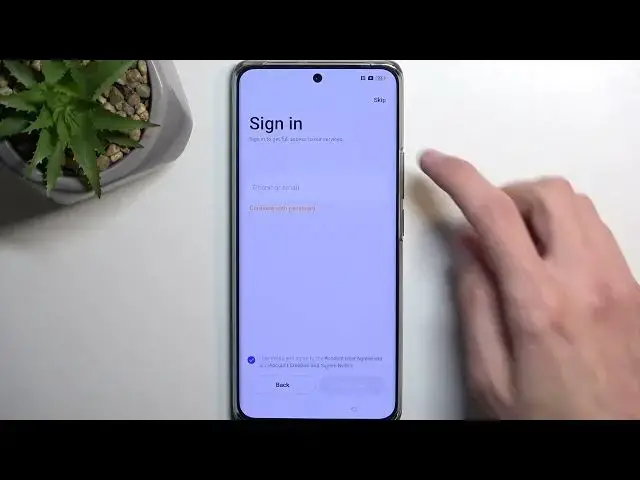
recognizing you. So there we go. Now moving on to the next page which I did skip this one because
2:23
I didn't want to set up anything. You have the option to sign in. Now because I am not connected
2:28
to any kind of network if I tried to it will just bring me back to the Wi-Fi connection page
2:36
so I'll be skipping that. This will then present us with navigation options. So we have button
2:43
navigation or gesture. I'll select gestures but it's completely up to you which one you prefer
2:51
Moving on we have some recommended auto update overnight, lag screen magazine and something that
2:56
we cannot really change so no point really showing it here. Now I'm gonna deselect both of them
3:03
For the people that don't know what a lag screen magazine is, it's basically a random
3:09
selection of photos that they will show on the lag screen. So every time you press on the power
3:14
button and you're on your lagged device like the lag screen it will just cycle through different
3:20
images and the images are pretty broad in categories. So you can have something like
3:26
you can see right here some nice Manhattan view. Then you can have whatever the heck this is some
3:34
like artistic ones. Then some complete like incoherent image that doesn't really make sense
3:41
So it can go from anywhere like furniture, architecture to travel and style and stuff
3:47
like that. So keep that in mind. Some people might be bothered by the like super broad
3:53
spectrum of like photos that they will show and like categories of photos. So if you don't
4:00
like this you can turn it off. Now moving on that basically finishes up the setup. So here we just
4:07
select get started and there we go. There is our home screen. So if you found this video helpful
4:13
don't forget to hit like, subscribe and thanks for watching