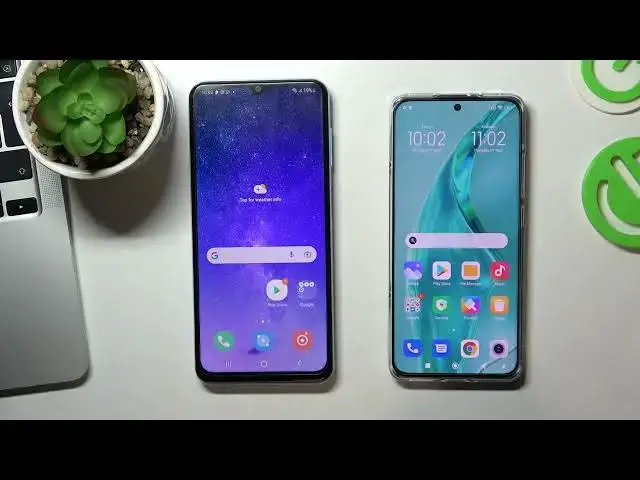
0:00
Hi, welcome to our channel
0:09
In this video I'll show you how to install parental control, how to set up parental control
0:15
how to install Family Link on your Samsung Galaxy A13. So firstly you need to log out of all Google accounts on your device to do these open settings
0:27
Scroll down, choose accounts and backup, manage accounts and delete your Google accounts
0:45
Now you need to add a Google account to your child's Galaxy A13
0:55
To do this, press ad account, Google and login into a child's Google account
1:02
But you need to know that if the child knows the password from his own account
1:07
he will be able to bypass the control of Google Family Link
1:12
And therefore you need to create an account for the child with a password that you will know or ask the child to change the password to one that he will not know so enter email
1:32
and a child's email and then the child's password Click I agree
1:53
Scroll down, click Accept. Cool. Now go back to settings menu. Choose Google here
2:06
Then scroll down and click Parental Controls. Tap get started, child or teenager. Next
2:19
Select Childs account. And now you need to login into your Google account
2:26
that will supervise child's account. In my case it's hard visit info one Then confirm your password Click Next
2:52
Scroll down and confirm child's password. Click agree and allow you
3:07
and allow supervision. Click next, scroll down, click next
3:17
Cool, click next and go back to home screen. Now open Play Store on your device and installable family
3:29
I have already installed but I'll install it to show you how it works
3:36
works. So find Google Family Link application in the Play Store, install it and open
3:46
Then go down, go down, click get started. And here you will see all linked accounts to your
3:57
Google account But now we need to choose Google account that we just recently add In my case it HDUDB Then scroll down and cool
4:12
Here we can see that we have fully control the child's phone
4:18
We can block his phone, we can block separate applications if he used it for a very long time
4:28
and you can control child's device. So if you want to block separate applications
4:36
you need to scroll down, click view all apps, and choose application to block
4:46
For example, I want to block a Spotify application. You need to find Spotify on your device
4:56
click on the Sandwatch, and click the Sandwich, and click block. Cool as you can see Spotify was successfully blocked and
5:04
that's all it's working thank you for watching like this video subscribe to
5:10
the other channel and bye see you