0:00
Welcome, in front of me is a OnePlus Nord CE 2 and today I'll show you how you can
0:13
go through the setup process of this phone. So anyway let's get started. This
0:18
will be the default state that you will most likely find your device in when you first put it up. So you want to select your desired language right over here
0:25
and then tap on start which brings you to terms and conditions. The only option
0:31
to get past this is select that you agree. You can tap on the privacy policy
0:35
and then user license agreement text to expand it and read exactly what you are
0:39
agreeing to if you are interested in that. From here we can put the next page
0:44
which is mobile network by inserting a SIM card so you can connect to your
0:49
mobile network and the reason for that is you have two ways of connecting to the
0:53
network either like this right here to a SIM card or using Wi-Fi and if you
1:00
choose to connect to either one of them you will throughout the setup process see a page that allows you to log into Google account and if you choose to skip
1:08
both of them like I will that page will never show up and additionally date and
1:13
time will not be set automatically. So I'm gonna set it up offline. Like I said
1:21
date and time because I didn't connect to anything I need to check if it's
1:26
correct or disregard it if I'm planning to connect to my network later on which
1:30
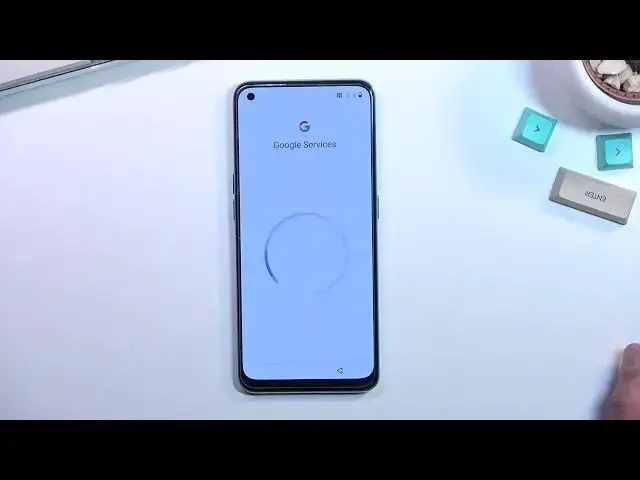
I will so I'm just gonna leave it as it is. This brings me to Google services so
1:35
we have three different services location scanning and sending user and diagnostic data and quickly going into all three of them location is just GPS
1:44
tracking for applications like Google Maps so they can give you a correct route allows scanning allows the device to look for signals like Wi-Fi and
1:51
Bluetooth and then send user and diagnostic data allows you to or allows
1:56
Google to gather data on you and sends it to themselves aka kind of spying on
2:00
you so I'll say no thanks to that one and go to the next page which is co
2:08
creation labs whatever the heck that is so we have some built-in apps push
2:12
notifications so basically some services I guess you can read exactly what these do what they are but I'm not really interested so I'm gonna select
2:22
disagree and this will bring me to the next page which is setting up a screen
2:27
lock now by default it opts into a six digit pin but you can tap right over
2:31
here to use a different password type and this will allow you to choose also
2:35
pattern four digit pen and also alphabetical password so select whichever one you want I will not I'm not gonna actually select anything so where's the
2:49
option to skip just closing it up now we go so by closing it I can proceed to
2:58
the next page which allows me to choose the font and text size or just font yep
3:05
now go there is a scale oh wait no not scale what am I saying so yeah that's a
3:10
different font so you can choose just a couple different fonts right here and
3:15
this will bring us to the next page which is navigation bar and gestures so
3:19
you can choose which one you prefer either the buttons like these ones or
3:23
gesture navigation and if you want to go with gestures you will also be prompted
3:27
to go to the to the guide on how to use them because apparently three years of
3:32
them existing or more is not enough for you to actually have the ability to skip
3:39
this if you already know so if you want to use them you are literally forced to
3:44
go through this absolutely stupid in my opinion but it's one plus so after all
3:52
they did settle and there we go we can now actually finish up the setup by
3:56
selecting start so if you found this very helpful don't forget to hit like
4:03
subscribe and thanks for watching