0:00
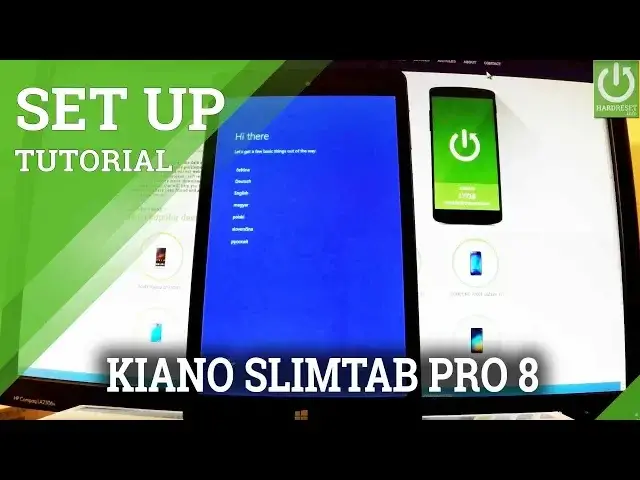
Here I have Canon SlimTap Pro 2 and let me show you how to accomplish activating this
0:09
device, so how to go through the initializing setup process. Of course let's start from the welcome panel, at first you have to choose your desired language
0:18
so in my case let's be English right here. You can change some other settings for example your home country, your preferred app language
0:28
keyboard layout and time zone, let me leave all of this as is in the default settings
0:34
and tap next. The device is applying the settings, let's wait a few seconds
0:43
This is the terms and conditions of the following device, so you have to read this if you wish
0:52
and tap accept, if you agree to all of them, let me do it
0:56
You can connect the device with an internet, so here you have the list of available wifi
1:02
let me connect to one of them. The device is connecting, if you have a password to your wifi let's type in this password
1:12
if not let's use the following screen. Now you can use customize settings right here or you can just choose use express settings
1:21
so let me do it, let's use just default settings
1:39
The device is getting critical updates, so you have to just wait until the whole operation
2:14
is done. Excellent, now you can create an account for this PC, you can choose the name of the owner
2:24
and use some passwords and other protections. Let's tap next if you would like to bypass this step, but at first you have to input
2:33
a name of the owner, so let me just choose for example Tom
2:40
Let's tap next, right here, now you can choose next. Excellent
3:24
Now as you can see the device found some updates, so you can update your tablet right
3:30
now by using an update key or you can tap not now to do it later, so let me choose not
3:35
now and as you can see now you can use your device, so everything went well
3:40
Thank you for watching, please subscribe our channel and leave a thumbs up under the video