0:00
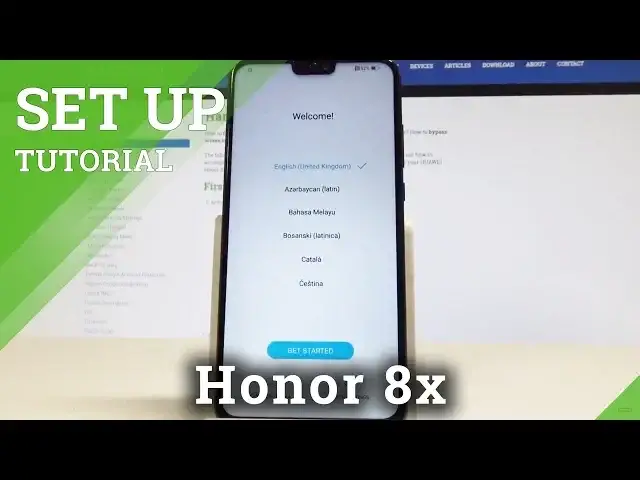
Here I have Honor 8X and let me show you how to set up this device, so basically let me
0:12
show you how to go through the initializing setup process on the following smartphone
0:17
So at the very beginning you have to choose your desired language, this is the full list
0:21
of available languages, in my case let me choose English. Let me choose English from United States for example
0:35
And here you can also change some vision settings, for example the phone size or you may use
0:40
emergency call right here. If not let's just get started, so let me accept the terms of use, tap next
0:51
So here let me also skip inserting the SIM card right here, so let me tap skip
0:57
Now you can connect your device to a network, it's not necessary but I usually recommend
1:01
this step because you can do more with the internet access. So let me connect my device with my WiFi and the phone is connected, so let's go next
1:14
The device is looking for available updates, the phone is checking info and now you can
1:21
sign in into the Google account, it's not necessary, you can bypass this step by tapping
1:26
skip but in my case let me connect my device with a Google account to enable a couple of
1:31
useful options. Let's enter the email of your Google account, tap next
1:42
It's time to enter the password, so let me do it. Alright if you are ready let's tap next right here
1:54
Let's accept the terms of use and privacy policy. The phone is getting account info, here we've got a couple of Google services, so we can
2:04
enable or disable backup to Google Drive, help apps find your location, improve location
2:10
accuracy, send system data. In my case let me leave all of them enabled, tap I agree
2:18
And let me tap no thanks to the assistant tutorial, let me skip Huawei ID, skip the
2:26
following settings, let me also skip the cloud. You can set up some device protection or you can do it later in settings, so for now let
2:36
me tap skip and no thanks to the following improvement projects. Tap finish, tap ok
2:47
Here you can install some popular apps, but in my case let me just skip this part, let
2:54
me tap later, tap all set. And that's it, the home screen pops up, so now you can start using your device
3:03
Everything went well, thank you for watching, please subscribe our channel, leave thumbs