0:00
Hello in this video I'm gonna show you how you can set up, connect and pair your
0:04
Sonos ERA 100 speaker with any Android device or iOS device. So honestly it looks the same for these two devices. All you have to do is just
0:17
to download the Sonos application for both devices from the Play Store or App
0:22
Store. But let me show you how to do this step by step. So first of all when you
0:26
open your device you have to plug this cable at the bottom of this of the
0:33
speaker and also the second end for sure we have to plug to the power supply. And
0:37
then when you do this you can find this small indicator above this Sonos marking
0:42
and it's just blinking like that. Take a look. It means that our device is
0:47
actually in the setup mode. So what we have to do right now is to turn on the
0:54
Wi-Fi on our device and then open the Play Store or App Store and get the Sonos
1:00
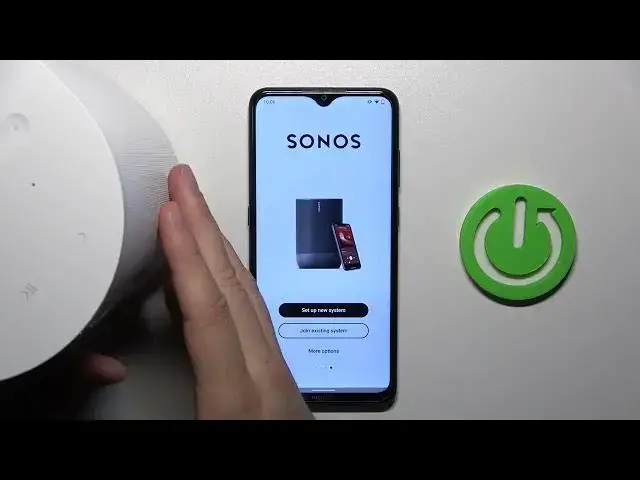
application. It's actually this application. So you have to click install. Now just be patient wait a little bit until the download will be finished
1:15
Okay and right now we can open it. There we can find the first information about
1:28
this application. So click to view terms of the use, scroll down and click accept
1:34
And right now we have to just set up the new system. How to find out that you
1:40
have the new system? So basically this icon will start blinking like that
1:46
If you have the old system, if you have this speaker from the
1:52
second hand and someone was connected with the speaker and didn't perform the
1:57
reset, so you will have right here the white light after turning it on
2:01
So let's go to the setup the new system. I have to just input my data below
2:10
login data. So if you don't have the Sonos account you have to create it right now. But if you have just input your data and that's what I'm gonna do right now
2:22
Click continue and of course I just lost the Wi-Fi connection so I have to click
2:28
try again. There we go and I have to input my password. So I'm gonna do this
2:35
out of the camera. Okay I did it and click to sign in
2:50
And that's actually a little bit interesting stuff that each time I try
2:55
to log in with this application I lost the Wi-Fi connection. So I'm not sure if
3:02
there's like problem with my phone, with my Android. But take a look it just keep
3:10
disconnecting. So click to sign in one more time. Yeah that's my account so
3:18
click continue. We have to enable location and the Bluetooth. There we go
3:24
Click done and it looks like I'm connected back with my account. And here
3:36
we have the quick notification about ERA 100 speaker. Click to continue, accept
3:41
all the permissions. Right now it is trying to connect with the speaker so
3:46
just put it close to your iPhone or Android phone. As you can see you will
3:53
get right now an audio pin. Okay let's click continue
4:09
There we go as you can hear there's some kind of that notification and as you can
4:16
see I'm connected with this network so I have to input also the password to this
4:20
network. So let's do this. Okay looks like I just input the wrong password so
4:32
let me do this one more time. Okay let's try to repeat and here we have to perform the first setup so I'm
4:49
gonna put it into the office. Click continue and as you can see in my case
4:55
there's even the new update so I just have to click update and right here
5:02
below we can find information that it is update on the way so we have to wait and
5:08
also this indicator is blinking like that white and red so just wait
5:19
Okay and as you can see right now the setup is finished so yeah that's all for
5:31
this video hope you like it