0:00
Here I have Asus Zenfone Live and let me show you how to activate this device, so let me
0:10
show you how to go through the initializing setup process. In the very beginning let me start by using a welcome panel, here you can choose your
0:17
desired language. This is the full list of available languages that you can use on this device, so in my
0:23
case let me choose for example English from United Kingdom. You may also make some emergency calls by using that call button, if not let's go back
0:35
and let's tap next right here. You should choose your input method, let me choose the English UK, let's tap next
0:43
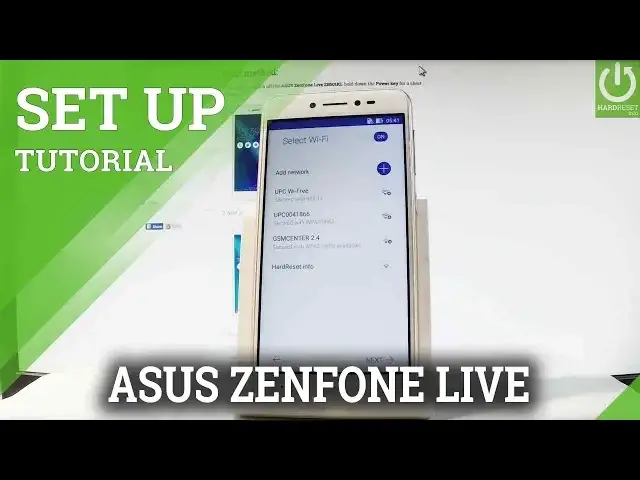
You can choose your form of internet connection, you can use both mobile network and WiFi or
0:48
just the WiFi, so let me use both, in my case let's tap next
0:52
The device is searching for available WiFi and now you can connect your device to one
0:56
of the WiFi, let me do it, it's not necessary but I usually recommend this, it's always
1:01
a good idea to have an internet connection, let's tap next. Here you've got some terms and conditions, let me agree to all of them, let's tap next
1:10
tap agree. The phone is checking connection and the device is looking for any available updates
1:31
Now you have to decide either you would like to copy Google accounts, apps and data from
1:37
one of your older devices or let's just choose no thanks. So let me select no thanks and now let's tap next right here
1:55
And now you have to decide that you would like to add a Google account to your phone
2:00
you can bypass this step by tapping skip right here or you can connect your device to a Google account
2:08
It's recommended because you will enable some interesting features by using a Google account
2:13
so you can do it in two ways, you can create a new account by using that link or use an
2:17
existing one. Let's tap next
2:45
Now it's time to enter a password, let me do it, wait a few seconds
2:56
Choose next again. If everything is alright let's accept terms of service and privacy policy, tap accept
3:13
The phone is checking info
3:23
Here you've got some settings about Google services, for example you can enable or disable
3:28
automatically backup device data, use Google's location service to help apps that remind
3:33
your location, improve location accuracy and help improve your Android experience. Let me leave all of these features enabled and let's tap next
3:44
The device is asking you to set up payment information, you don't have to do this, you
3:48
can bypass this step by tapping no thanks right here and tap continue
3:57
Here you've got some settings about date and time, if everything is correct let's just
4:12
And now we have to decide if you would like to restore apps and data from one of the backups
4:17
that are saved on your Google account, here you should see the full list of your previous
4:22
phone, in my case let me choose don't restore and let me set up device without apps and data
4:27
Here you've got some apps that will be downloaded over WiFi, here you've got some optional apps
4:38
in my case let me don't download anything, let me tap ok
4:44
Now you can protect your device by using a screen lock, let me choose no thanks and tap
4:48
next, choose skip anyway. You can register your iAsus product or you can just tap next without it, so let me do
4:58
it, let me do it again, let's tap next and next again
5:05
You've got some Google Drive promotion, let's tap next and setup completed, let's tap done
5:15
And the device is preparing a home screen, as you can see now you may use your device
5:19
so everything went well, thank you for watching. Please subscribe our channel and leave thumbs up under the video