0:00
Hello! In front of me I have Garmin Swim 2 and I'm gonna show you how to set an image as a watch face on this watch
0:08
Basically, if you want to use your own image or a picture as a watch face
0:18
Before we start, if you want to set an image as a watch face on this watch, your watch needs to be paired with a phone via the Garmin Connect application
0:27
Once the devices are paired together, we can continue. And now we need to download and install Connect IQ Store application on the phone that is paired with our watch
0:37
So, make sure you have internet connection and Bluetooth enabled on your phone
0:41
Then open the Play Store, or rather App Store. And I'm gonna open the Play Store because I'm using the Android device, but if you're using the iPhone, you can open the Apple App Store
0:53
So, open the App Store, tap on Search, type in Connect IQ Store and tap on the Search button
1:10
You should see this application called Connect IQ Store with this icon
1:15
Now, let's install it by tapping on the Install button. And once the application is done installing, you can tap on the Open button to open it
1:27
In the Connect IQ Store application, tap on the Welcome button. Then you can tap on Continue or Switch Accounts
1:36
I'm gonna tap on Continue, but if you want to use a different account, you can tap on Switch Accounts
1:41
Here I'm gonna select the box and tap on Next. Allow the permission
1:49
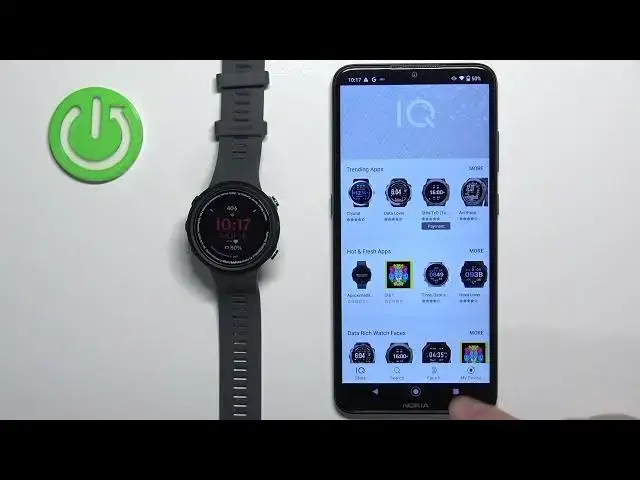
And after a couple of seconds, the IQ Store should load. And as you can see, we have the IQ Store page and we have different categories here of watch faces and apps
2:00
But we are interested in this icon right here. Face it. Tap on it to select it and it should bring you to this page
2:09
Now, to set an image as a watch face, simply tap on this plus button
2:16
And you can select Camera or Gallery. Camera option allows you to take a picture with the camera on your phone and use it as a watch face
2:23
And the Gallery option allows you to select the photo from the phone
2:30
So I'm gonna select the Gallery option. You can select whatever you want
2:34
This will open the File Manager. And here we can browse the files on our phone and look for something we want to use
2:43
I'm gonna use this picture, so I'm gonna tap on it to select it
2:47
And once you select the picture, you'll get the preview of the watch face. And you can move the watch face around to center it on the part of the picture
2:57
Like this. You can change the type of the clock. Like that
3:03
And once you're done with this, you can tap on the color and change the accent or color of the accent
3:09
And then you can also tap on the clock and you can change the type of the clock
3:13
Or rather maybe how the font looks like. And once you're done, you can tap on the Done button right here
3:19
Name the watch face. And then Save. And here we have our watch face
3:26
You can make multiple if you want, but for now we're just gonna stick with one
3:32
Okay, so once you have the watch face set up, you can tap on the Install button to basically install it on your watch
3:38
So tap on Install. Tap on OK. Then let's go back to watch face and wait until it's gonna be applied because it's still installing as you can see
3:54
And once the watch face is done installing, it's gonna be applied on your watch as you can see
3:59
You can add multiple, like I said before, watch faces. You can also tap on this button right here to edit the watch face, rename it or delete it if you want
4:07
Okay, and once you're done, you can close the Connect IQ Store application
4:13
And that's how you set an image as a watch face on this watch
4:17
Thank you for watching. If you found this video helpful, please consider subscribing to our channel and leaving a like on the video