0:00
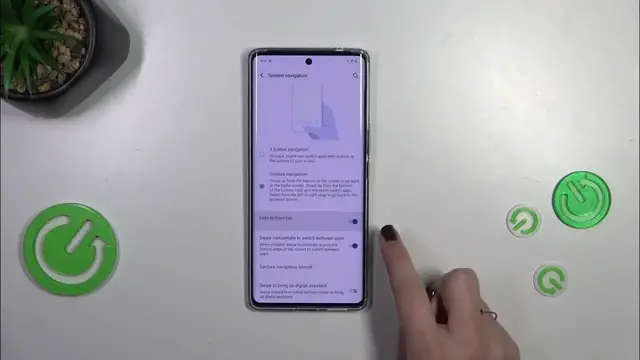
Hi everyone! In front of me I've got Vivo V29 and let me share with you how to change this navigation type with the buttons to the gestures
0:15
So let's start with opening the settings and here in this kind of a general section we have to scroll down to the very bottom to find the system
0:24
Now let's tap on system navigation and as you can see here we've got two different options from which we can choose
0:30
At the top we've got kind of an animation which will show us a hint of how to use a particular mode
0:36
Before we'll set the gestures because all we have to do is to tap on this option
0:40
Just a quick disclaimer because here you can actually customize the three button navigation
0:45
So if you will decide that you want to stick to this option you can customize it here
0:49
So for example reorder the back button and the recents and change the style of the icons
0:54
So replace the three bars icon to the square icon and make those shapes more maybe not filled but you know connected with each other
1:05
All right so let's set the gestures. So let's tap on this option and as I said here we've got the animation but of course I'll explain everything
1:16
Each gesture you can use in this navigation type. Instead of the three buttons we've got this line which is responsible for some gestures
1:25
If you want you can hide it and it's of course up to you but to be honest I prefer this line to be hidden
1:32
So I will turn on this option. You can decide whether you want to swipe horizontally to switch between apps
1:38
You've got the gesture navigation tutorial so you can always go through it and learn
1:42
And you can swipe to bring up digital assistant. It's basically up to you if you want to use this option
1:48
All right so a quick tutorial of how to use the gestures. In order to get back to the previous page just like using the back button we have to swipe our finger from the side to the center like that until we will see this arrow
2:01
And we can release the finger we will go back. The same situation from the left side
2:06
If you want to get back directly to the homepage simply swipe your finger from the bottom to the center
2:11
And it should be a short and quick motion just like that. And if you want to open the recents repeat the gesture however elongated
2:18
So hold your finger somewhere here and after releasing you've got the recents
2:22
All right so that would be all. Thank you so much for watching
2:26
I hope that this video was helpful and if it was please hit the subscribe button and leave the thumbs up