0:00
Today in front of me I have Nokia X30 and in this video I would like to demonstrate
0:04
that you can scan a document on this device and later transform it into a PDF file
0:14
The first step that you need to take is to get the Google Drive application if you do
0:18
not have it. I would assume I am one of those people
0:22
Yep, so I do not have it on my phone, that's fine. Just enter the Google Play Store, make sure that your smartphone is connected to the Wi-Fi
0:29
and then type in Drive. After that you are going to get the Google Drive application, official one of course
0:40
So now we will wait for it to get downloaded and installed, which will not take a lot of time
0:44
After that you can just go ahead and launch it. In here tap on this plus sign at the bottom right corner of your screen
0:55
Choose the scan feature, grant the Google Drive the take pictures and record video
1:01
permissions or camera permissions in general while using the app. Now take a document that you wanted to scan, so I have this one for example
1:12
Make sure to properly align it in the viewfinder. Lay the document flat to begin with, not like I did, but whatever, I am showing just an
1:20
example pretty much at this point. Make sure that it is straight and good looking, I mean it is positioned the way you like it
1:28
to be. Then tap on the shutter button, this one. Once you are ready to take a scan, then you will get the preview of the photo you have
1:41
just took. You can either redo it by tapping on this icon or if you are satisfied as I am, just
1:47
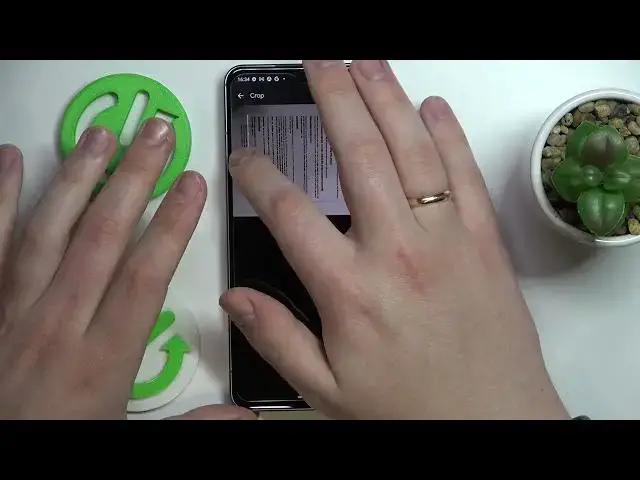
tap on this check icon, should I rather say. From here you can realign it fairly easily by tapping over here, crop it, realign it
1:57
to whatever you want with the document pretty much. I will just make it a little bit more restrained on the edges, let's say like so
2:07
You can also draw over it I guess, as you can see, or choose it, not draw of course
2:13
choose the color palette, so none, black and white color, color or even color drawing palette, whatever
2:20
You can just leave it at the black and white format. And then once you are ready to save it, just tap on the respective button over here, edit
2:27
the document title if you would like to, choose where you would like to save it to, path that
2:33
will go to. I will just save it to the default path to my drive and then save
2:42
And well, now this document has been successfully saved into the Google Drive and files respectively
2:49
I guess here it is the last one, yep. And it is a PDF file now, as you can see
2:57
Alrighty, so that would be it, thanks for watching and bye bye