0:00
Let's set the Axon 7 and let me show you how to enable the power saving mode on the following device
0:14
So at the very beginning let's start by using your home screen. Let's use upper bar twice and if you would like to have quick access to power saving
0:23
mode let's choose ultra power saving. Right here. So here you've got information about ultra power saving
0:31
This is the most restrictive power saving mode. Let's tap OK to confirm it and that's it
0:37
As you can see your screen right now is very dark but you can use your device for a really
0:42
long time. So if you would like to quit this mode let's use upper bar and here let's tap ultra power
0:50
saving mode and you can hear switch mode from ultra power saving mode to performance so
0:57
to the normal mode and as you can see here you've got the settings about your power saving mode
1:04
You can also find those settings by using the settings. Here by tapping power manager
1:10
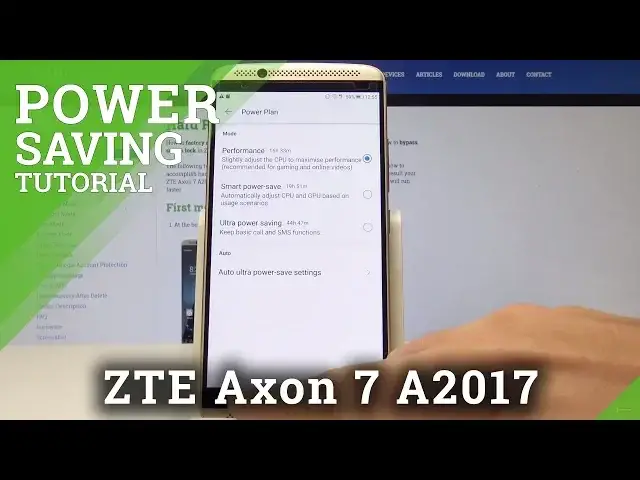
Here by tapping power plan and as you can see here you can also enable ultra power saving
1:15
mode or you can just use smart power save. So it's like the light power saving mode so you just automatically adjust CPU and GPU
1:25
usage based on the usage scenarios and basically this is the power saving mode that you can
1:33
also use. But in my case let me go back to the performance mode
1:38
You can also use auto ultra power save settings right here. For example to enable this mode when you have 15% of the battery or to use the scheduled time
1:48
So that's it. Everything went well. Thank you for watching. Subscribe our channel, leave a thumbs up under the video