0:08
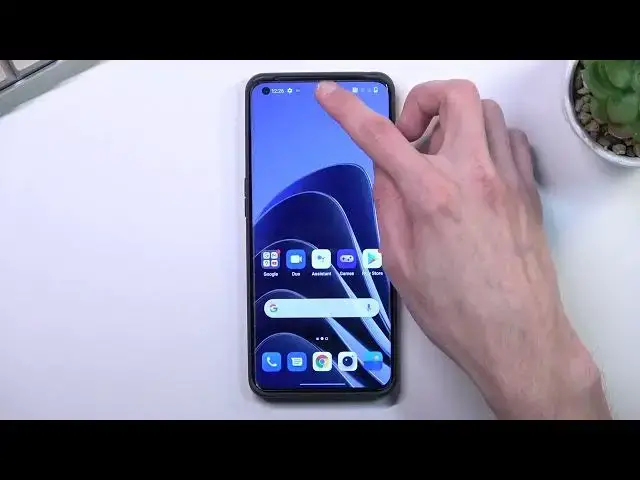
In front of me is a OnePlus 10 Pro and today I'll show you how you can record screen on
0:13
this phone. So to get started, let's pull down our notifications from the middle, expand it and look for the
0:20
screen recording toggle, assuming it is added by default and it is
0:25
As you can see, it's right over here. This is the default orientation of the toggles, so hopefully you can find this toggle in the
0:31
same place on your phone. Now once you locate it, you can tap on it to immediately start recording your screen
0:40
after basically tapping on the record button, but you can also hold it and this will take
0:44
you to the settings and in here you can change a couple of the settings that are right here
0:49
So we have definition, we are set to medium, I would recommend changing it to high
0:56
This will give you a better visual fidelity of the recording over the default one
1:03
And we have also frame rate, we are set to dynamic which, honestly, I don't know if this
1:10
is good or bad to be honest, never really tested it. I guess it will utilize lower frame rate when it can and increase them when the phone can
1:20
actually utilize more frames, but I have no idea how other places deal with this
1:29
If it's not recording at a fixed frame rate, YouTube might be just kind of confused by
1:36
this, so keep that in mind. I would probably personally prefer to change it to 60 like I did right now and that would
1:42
be basically allowed to change. Now there is also a couple toggles right here which you can change at your will
1:48
I'm going to keep them as they are. So once you have changed your settings, let's find the toggle once again, tap on it, select
1:56
continue and accept and allow access to everything that it needs. Now these things that it asks access to, it does actually need it
2:06
The reason why it needs to, for instance, make screen recording to make, well, allow
2:11
screen recording to make calls and manage calls, stuff like that, might be so you can
2:15
record your calls, but it also could be because it is utilizing microphone to record your
2:21
voice and that could be possibly just associated with just making calls
2:27
Obviously stored so it has somewhere to save this and there we go
2:31
We can now start recording by tapping on this circle. Come on
2:35
There we go. So it's now recording. So whatever I'll do right now will be recorded by the phone
2:44
Now once I'm done with recording, I can interact with the overlay and stop it
2:49
This will automatically save it to my gallery application and as you can see it's right here
2:54
You can also navigate into albums, which it should be in a video album and there it is
3:00
as you can see and it's already playing
3:11
So there we go. That is how you could record your screen on this phone and if you found this very helpful
3:16
don't forget to hit like, subscribe and thanks for watching