0:00
Hi everyone, in front of me I've got a OPPO Reno 10X Zoom and let me share with you how
0:11
to change keyboard language on this device. So first of all we have to open the keyboard, for example in messages or in notes, it doesn't
0:19
really matter. Just have the keyboard on the screen and right now we have to enter the settings
0:25
If you cannot find them here also no worries, just tap on the three dots icon and the settings
0:31
should appear right here. Of course you can then tap on them, hold it and drag it to this panel to have much faster
0:36
access to this feature. So let's enter the settings and we have to tap on the languages which should be on the
0:43
very first position. And as you can see in my case I've got some languages previously added but no worries
0:50
let's tap on add keyboard and as you can see we've been transferred to the full list of
0:55
all available keyboards from which we can choose all available languages and layouts
1:00
So we've got plenty of options to choose from, I'm really sure that you will find the language
1:04
you'd like to set and use. And let me pick the graphical language because I would like to actually show you the actual difference
1:14
So let me pick Arabic for example and sometimes you will also be able to pick the region
1:19
so again just tap on the one you'd like to set. So we've got two different keyboards from which you can choose so probably the order
1:29
of the letters is different. I will stick with this one so let's tap on done and as you can see it has been immediately applied
1:36
If we are on this step I can also show you how to remove the language so it will be much
1:40
easier for me to show you later on how to change the language because I will not have
1:46
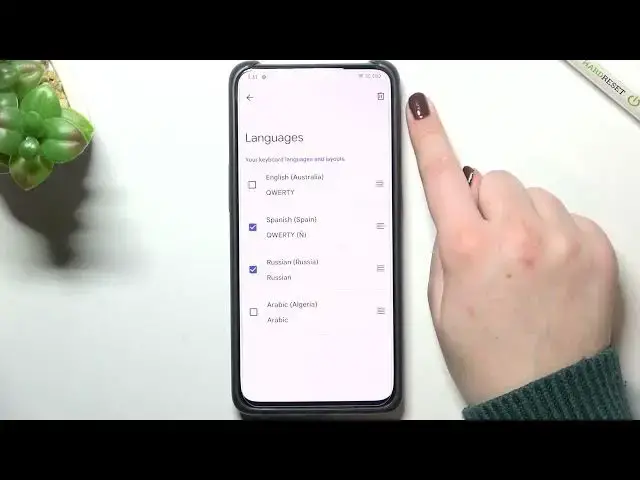
to go through all of them, so the Spanish and the Russian. So if you want to remove the language from this list and also from the keyboard just
1:53
tap on this edit icon in the right upper corner. So let's tap on it and as you can see right now we can mark the languages
2:00
So in my case I will mark Spanish and Russian and if you'd like to remove it just tap on
2:06
this trash bin icon. So let's tap on it and as you can see we've got only English and Arabic left
2:11
As you can see also after tapping on this edit icon you can reorder the languages
2:18
So you can decide which language will appear at first. But let me leave it like this
2:26
Let's leave the English as a default one. So let's go back to the keyboard and here we've got actually two differences comparing
2:35
to the keyboard with only one language. So first of all the space bar is not empty
2:41
We've got the name of the language we are currently using and next to it we've got the
2:44
globe icon, the language key which will actually allow us to change the language
2:49
So right now I'm typing English but after tapping on this globe icon I can easily switch
2:53
to the Arabic one. And after tapping on it again we've got English and so on and so on
3:00
So this is how to actually add the language to the keyboard and I've shown you how to
3:06
remove it. So if you do not need, you know, two or three different languages added then again tap on
3:14
this one, mark it and the trash bin icon. So actually this is it
3:19
This is how to change keyboard language in your OPPO Reno10x Zoom
3:23
Thank you so much for watching. I hope that this video was helpful and if it was please hit the subscribe button and